Thursday, October 17, 2013

Cool Resharper Features Part-2

This post will be part-2 of first post Cool Resharper Features Part-1. In this post we are also going to learn some other cool features that resharper is providing. Following are some of features that resharper is providing.

1) Move to another file to match type name:

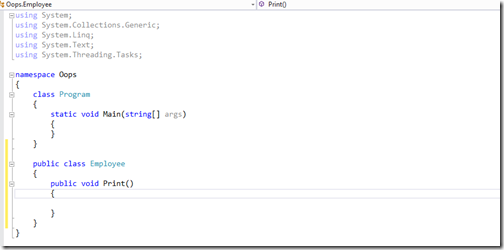
This feature makes you very productive when you need to create a new class. Suppose with normal visual studio you need to create a new class with new file then you need to do via file menu –> Add new item and then select class. Here you can do very easily without having all this stuff. Just write you class after class in any .cs file like below.


Movetoanother filetomatchtypename

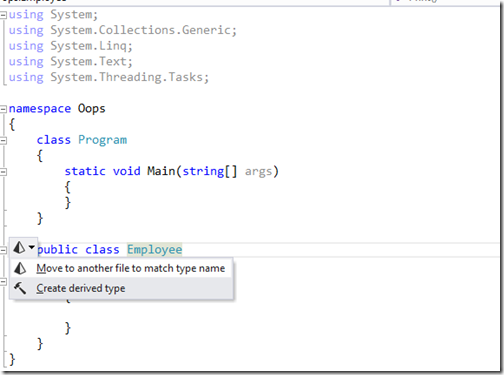
In above image you can see that I have created a employee class. Now when you put a cursor on employee class name resharper will open a popup or you can press ALT + R and it will open a popup like this.

Movetoanother filetomatchtypename2

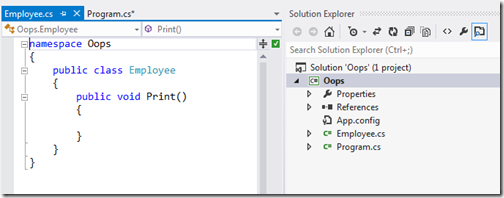
And once you click on this it will create a file name with Employee.cs and move class code to that file.

Movetoanother filetomatchtypename3

2) Extract Interface(Refactor Menu):

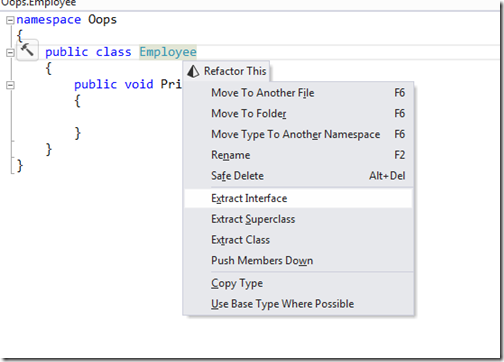
This features comes quite handy when you are working with interfaces. Here you can have interface extracted from class. Let’s take same example of employee class. Now I am pressing Ctrl-Shift-R to open refactor menu.

ExtractInterface

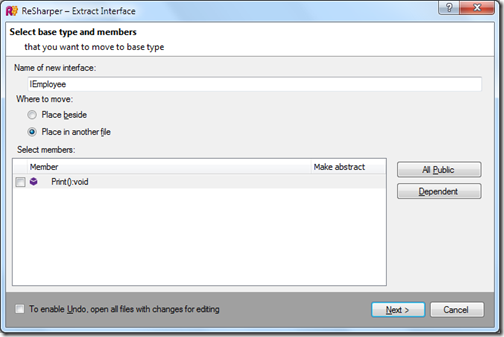
Now once you click on this.It will open a popup with some options like following.

ExtractInterface2

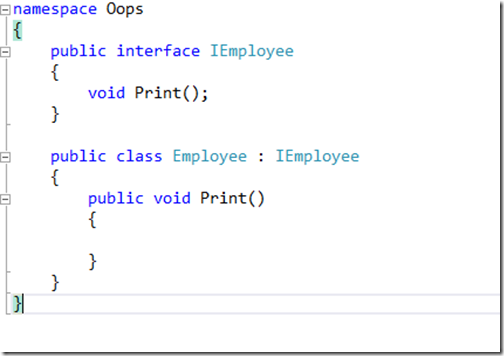
Here it will ask for Interface name, Where we want to move and what member we need to create once you click. There also button given to select all public or dependent member.Once you select print click on next it will extract a interface in new file like following.

ExtractInterface3

Here for demo purpose I have not selected move to another file so that I can show both class and interface implementation but you could create a new file also with the same class.

3) Go To Implementation:

If we are using interfaces and we want to find a interface is implemented in how many class or we want to find the class which implement this interface this feature becomes quite handy. There are some other use of this feature also here it’s very productive.

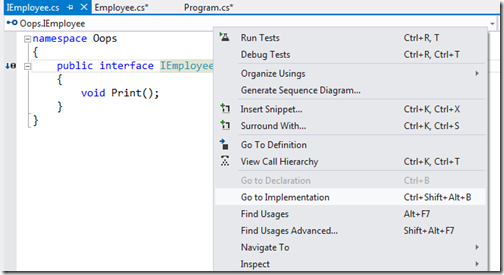
For example, I want to find which class has implementation of IEmployee interface as above example then I need right click and select “Go To Implementation” or I can directly do with shortcut Ctrl + Shift + Alt + B.
Once you right click a menu appears like following.

GoToImplementation

Once you click on this. It will navigate to Employee class which implements this interface.

GoToImplementation2

That’s it. Hope you like I will post some other features of resharper in my future posts.Stay tuned for more.. Smile
Share:
Saturday, October 12, 2013

Cool Resharper features part -1

I have been using Jetbrain’s resharper since last four years and it’s been my default Visual Studio plugin for visual studio. After this much of experience of resharper I must say if resharper is not there I would not have that much productive with visual studio. Working with it is a pleasure. I this post I am going to explain some cool resharper features.

Resharper uses two keyboard schemes Visual Studio or Intelli IDEA scheme. In this post I am going to use Intelli IDEA scheme. The only difference between two key map scheme is keyboard shortcut. Some Visual Studio short cut will be override by Resharper.

1) ALT + Enter:

It’s a magic key for resharper you can have any feature with ALT+ Enter whether its refactoring, code completion or anything. You can use ALT + Enter for anything. For example you have some name space un used and you want to remove namespace just press ALT + Enter and it will have popup like following.

ALTEnter

Once you click on this and it will remove unused namespace. Same way I have a class called Student Repository and I have one private variable which I want to initialize with constructor then I just need to press ALT+ Enter on that line and it will open a popup like following.

ALTEnter2


Once you click on Initialize field from constructor(s) parameter and it will create a code like following.

ALTEnter3

2) GO to Type:

This is an awesome feature of navigation. You can have either from resharper menu->Navigation GO to Type or you can have Ctrl + N short cut for intelli IDEA scheme. Once you click it will open a popup and whatever you type it find matching list of type and once you click on type you will be there.

GoToType

3) Find Usage:

This is also an awesome feature for finding usage of particular type or variable. You can right click any type and click on find usage or you have short cut key ALT + f7.

FindUsage

Once you click on Find Usage it will list all load all the find result and you click on any one and you can go to there file.

FindUsage2

3) Smart symbol completion:

When you use Ctrl + Space it will suggest you the option to complete symbol and save lots of keyboard stroke.

SmartCodeCompletion

4) Smart code selection:

With Ctrl + W you can select current type and again you press Ctrl + W it will select line and again you press Ctrl + W you can select method.

SmartCodeSelection
That’s it. This are some feature that I am using I will have more feature list in forth coming posts. Hope you like it. Stay tuned for more.Smile
Share:
Wednesday, October 9, 2013

Database diagram support objects cannot be installed because this database does not have a valid owner- SQL server error solution

Before some days, I have copied one database from the one of server and restored it on my machine. The server was not having ‘sa’ user login and I was having the ‘sa’ user in my local machine. The database was restored perfectly with no problem but when I tried to create a database diagram I got following error.
Database diagram support objects cannot be installed because this database does not have a valid owner. To continue, first use the Files page of the Database Properties dialog box or the ALTER AUTHORIZATION statement to set the database owner to a valid login, then add the database diagram support objects.
After digging into that I found that the database does not have any valid owner and that’s why its generating errors. To resolve this error following is a step to change or add owner of database.

Step-1:


Right click on your database and click properties it will open a dialog like following. Goto-> Fiile Tab.

DatabasePropertiesDatabaseOwner

Step-2:


Click on .. button it will open a dialog box like following.

BrowseDatabasePropertiesDatabaseOwner

Step-3:


Click on browse button. It will open a list of user available for SQL Server.You need to select user whom you want to make database owner. In my case I want to make ‘sa’ user database owner so that I have selected like following.

SaDatabaseOwner

After selecting user you need to close all dialog via pressing ‘OK’ buttons. That’s it your database is now having proper owner and error for database diagram is gone now.  Hope you like it. Stay tune for more..
Share:
Sunday, September 29, 2013

Getting Started with NHibernate and ASP.NET MVC- CRUD Operations

In this post we are going to learn how we can use NHibernate in ASP.NET MVC application.

What is NHibernate:


Nhibernate
ORMs(Object Relational Mapper) are quite popular this days. ORM is a mechanism to map database entities to Class entity objects without writing a code for fetching data and write some SQL queries. It automatically generates SQL Query for us and fetch data behalf on us.

NHibernate is also a kind of Object Relational Mapper which is a port of popular Java ORM Hibernate. It provides a framework for mapping an domain model classes to a traditional relational databases. Its give us freedom of writing repetitive ADO.NET code as this will be act as our database layer. Let’s get started with NHibernate.

How to download:


There are two ways you can download this ORM. From nuget package and from the source forge site.
  1. Nuget - http://www.nuget.org/packages/NHibernate/
  2. Source Forge-http://sourceforge.net/projects/nhibernate/

Creating a table for CRUD:


I am going to use SQL Server 2012 express edition as a database. Following is a table with four fields Id, First Name, Last name, Designation.
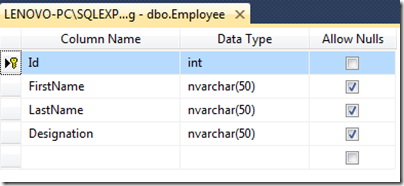
NhibernateASPNETMVCTable

Creating ASP.NET MVC project for NHibernate:


Let’s create a ASP.NET MVC project for NHibernate via click on File-> New Project –> ASP.NET MVC 4 web application.
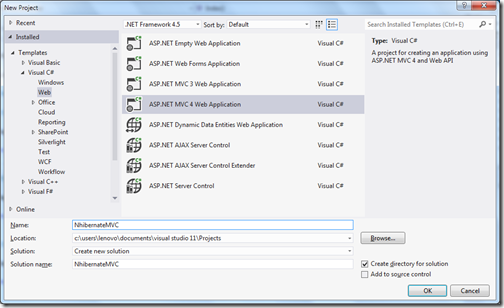
NhibernateASPNETMVCProject

Installing NuGet package for NHibernate:


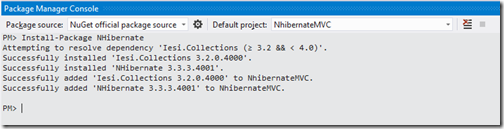
I have installed nuget package from Package Manager console via following Command.

NhibernateNugetPackage

It will install like following.

PackageManagerConsoleNhibernate

NHibertnate configuration file:


Nhibernate needs one configuration file for setting database connection and other details. You need to create a file with ‘hibernate.cfg.xml’ in model Nhibernate folder of your application with following details.
<?xml version="1.0" encoding="utf-8" ?>
<hibernate-configuration xmlns="urn:nhibernate-configuration-2.2">
  <session-factory>
    <property name="connection.provider">
      NHibernate.Connection.DriverConnectionProvider
    </property>
    <property name="connection.driver_class">
      NHibernate.Driver.SqlClientDriver
    </property>
    <property name="connection.connection_string">
      Server=(local);database=LocalDatabase;Integrated Security=SSPI;
    </property>
    <property name="dialect">
      NHibernate.Dialect.MsSql2012Dialect
    </property>
  </session-factory>
</hibernate-configuration>

Here you have got different settings for NHibernate. You need to selected driver class, connection provider as per your database. If you are using other databases like Orcle or MySQL you will have different configuration. ThisNHibernate ORM can work with any databases.

Creating a model class for NHibernate:


Now it’s time to create model class for our CRUD operations. Following is a code for that. Property name is identical to database table columns.
namespace NhibernateMVC.Models
{
    public class Employee
    {
        public virtual int Id { get; set; }
        public virtual string FirstName { get; set; }
        public virtual string LastName { get; set; }
        public virtual string Designation { get; set; }
    }
}

Creating a mapping file between class and table:


Now we need a xml mapping file between class and model with name “Employee.hbm.xml” like following in Nhibernate folder.
<?xml version="1.0" encoding="utf-8" ?>
<hibernate-mapping xmlns="urn:nhibernate-mapping-2.2" auto-import="true" assembly="NhibernateMVC" namespace="NhibernateMVC.Models">
  <class name="Employee" table="Employee" dynamic-update="true" >
    <cache usage="read-write"/>
    <id name="Id" column="Id" type="int">
      <generator class="native" />
    </id>
    <property name="FirstName" />
    <property name="LastName" />
    <property name="Designation" />
  </class>
</hibernate-mapping>

Creating a class to open session for NHibernate:


I have created a class in models folder called NHIbernateSession and a static function it to open a session for NHibertnate.
using System.Web;
using NHibernate;
using NHibernate.Cfg;

namespace NhibernateMVC.Models
{
    public class NHibertnateSession
    {
        public static ISession OpenSession()
        {
            var configuration = new Configuration();
            var configurationPath = HttpContext.Current.Server.MapPath(@"~\Models\Nhibernate\hibernate.cfg.xml");
            configuration.Configure(configurationPath);
            var employeeConfigurationFile = HttpContext.Current.Server.MapPath(@"~\Models\Nhibernate\Employee.hbm.xml");
            configuration.AddFile(employeeConfigurationFile);
            ISessionFactory sessionFactory = configuration.BuildSessionFactory();
            return sessionFactory.OpenSession();
        }
    }
}

Listing:


Now we have our open session method ready its time to write controller code to fetch data from the database. Following is a code for that.
using System;
using System.Web.Mvc;
using NHibernate;
using NHibernate.Linq;
using System.Linq;
using NhibernateMVC.Models;

namespace NhibernateMVC.Controllers
{
    public class EmployeeController : Controller
    {

        public ActionResult Index()
        {
            using (ISession session = NHibertnateSession.OpenSession())
            {
                var employees = session.Query<Employee>().ToList();
                return View(employees);
            }
           
        }
    }
}

Here you can see I have get a session via OpenSession method and then I have queried database for fetching employee database. Let’s create a new for this you can create this via right lick on view on above method.We are going to create a strongly typed view for this.
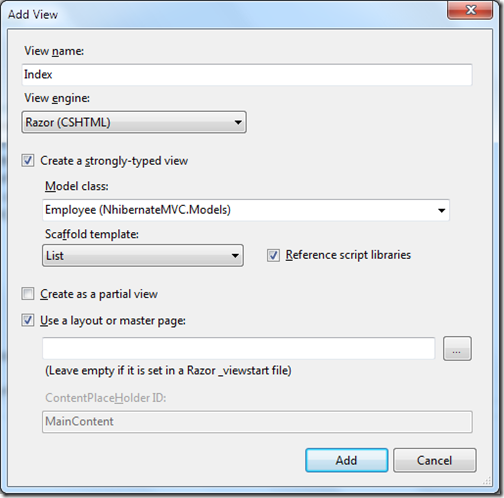
Getting Started with NHibernate and asp.net mvc

Our listing screen is ready once you run project it will fetch data as following.
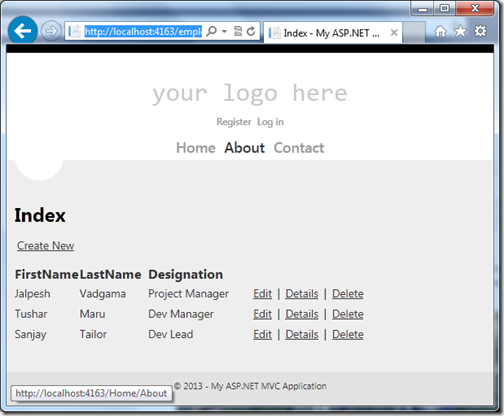
EmployeeListingusingNhibernateandaspnetmvc

Create/Add:


Now its time to write add employee code. Following is a code I have written for that. Here I have used session.save method to save new employee. First method is for returning a blank view and another method with HttpPost attribute will save the data into the database.
public ActionResult Create()
{
    return View();
}

      
[HttpPost]
public ActionResult Create(Employee emplolyee)
{
    try
    {
        using (ISession session = NHibertnateSession.OpenSession())
        {
            using (ITransaction transaction = session.BeginTransaction())
            {
                session.Save(emplolyee);
                transaction.Commit();
            }
        }

        return RedirectToAction("Index");
    }
    catch(Exception exception)
    {
        return View();
    }
}

Now let’s create a create view strongly typed view via right clicking on view and add view.
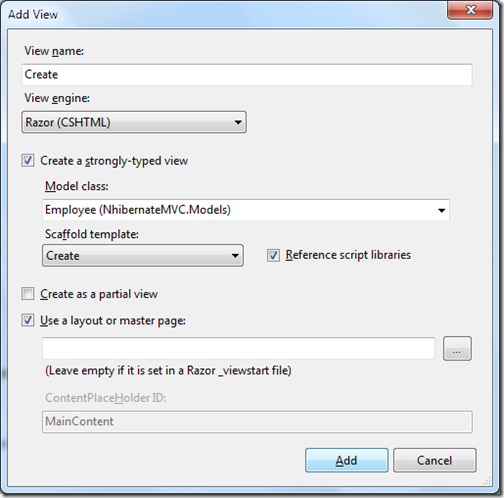
AddViewwithNhibertnateandaspnetmvc

Once you run this application and click on create new it will load following screen.
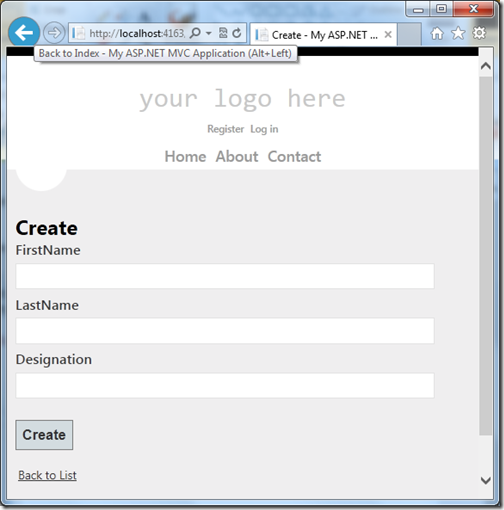
AddViewScreenwithNhibernateandaspnetmvc

Edit/Update:


Now let’s create a edit functionality with NHibernate and ASP.NET MVC. For that I have written two action result method once for loading edit view and another for save data. Following is a code for that.
public ActionResult Edit(int id)
{
    using (ISession session = NHibertnateSession.OpenSession())
    {
        var employee = session.Get<Employee>(id);
        return View(employee);
    }
   
}


[HttpPost]
public ActionResult Edit(int id, Employee employee)
{
    try
    {
        using (ISession session = NHibertnateSession.OpenSession())
        {
            var employeetoUpdate = session.Get<Employee>(id);

            employeetoUpdate.Designation = employee.Designation;
            employeetoUpdate.FirstName = employee.FirstName;
            employeetoUpdate.LastName = employee.LastName;

            using (ITransaction transaction = session.BeginTransaction())
            {
                session.Save(employeetoUpdate);
                transaction.Commit();
            }
        }
        return RedirectToAction("Index");
    }
    catch
    {
        return View();
    }
}

Here in first action result I have fetched existing employee via get method of NHibernate session and in second I have fetched and changed the current employee with update details. You can create view for this via right click –>add view like below. I have created a strongly typed view for edit.
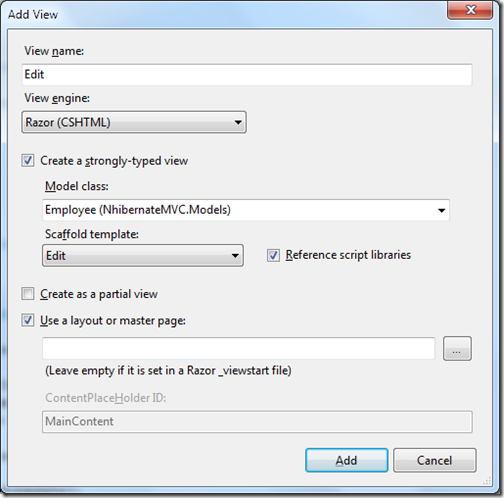
EditViewwithNhibernateandaspnetmvc

Once you run code it will look like following.
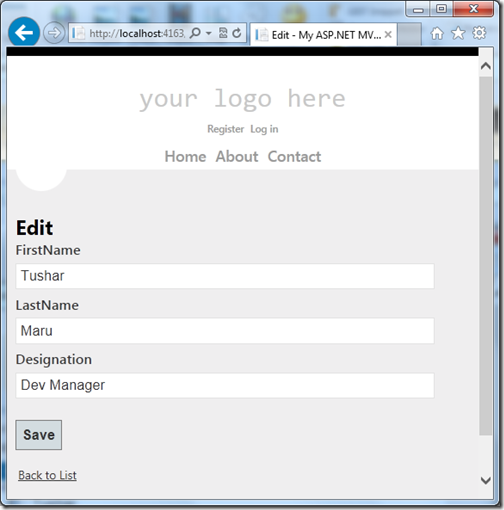
EditViewScreenwithNhibernateandaspnetmvc

Details:


Now it’s time to create a detail view where user can see the employee detail. I have written following logic for details view.
public ActionResult Details(int id)
      {
          using (ISession session = NHibertnateSession.OpenSession())
          {
              var employee = session.Get<Employee>(id);
              return View(employee);
          }
      }

You can add view like following via right click on actionresult view.
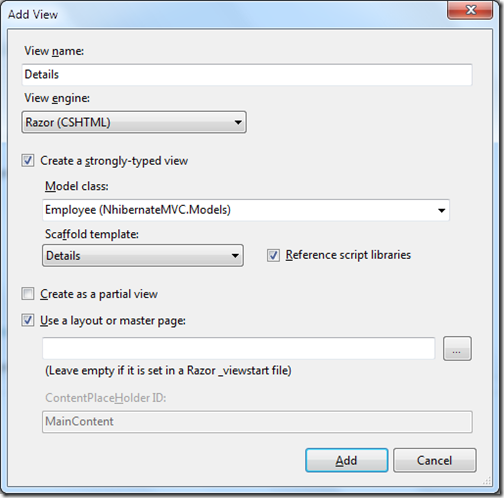
Detailsviewwithnhibernateandaspnetmvc

now once you run this in browser it will look like following.

Delete:


Now its time to write delete functionality code. Following code I have written for that.
public ActionResult Delete(int id)
{
    using (ISession session = NHibertnateSession.OpenSession())
    {
        var employee = session.Get<Employee>(id);
        return View(employee);
    }
}

       
[HttpPost]
public ActionResult Delete(int id, Employee employee)
{
    try
    {
        using (ISession session = NHibertnateSession.OpenSession())
        {
            using (ITransaction transaction = session.BeginTransaction())
            {
                session.Delete(employee);
                transaction.Commit();
            }
        }
        return RedirectToAction("Index");
    }
    catch(Exception exception)
    {
        return View();
    }
}

Here in the above first action result will have the delete confirmation view and another will perform actual delete operation with session delete method.
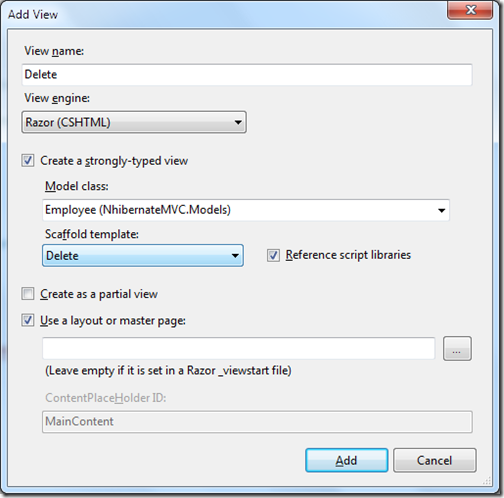
Deleteviewwithaspnetmvcandnhibernate

When you run into the browser it will look like following.
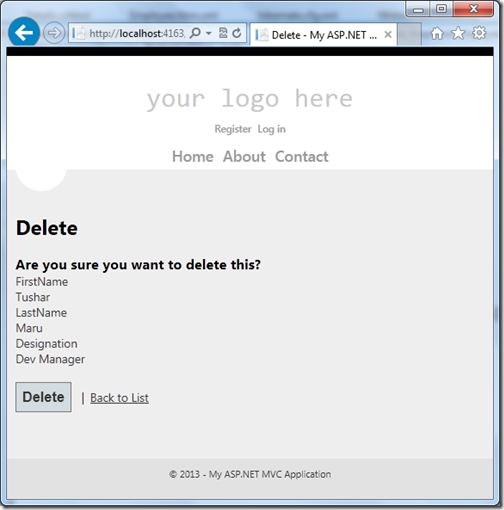
DeleteScreenwithaspnetmvcandnhibernate

That’s it. It’s very easy to have crud operation with NHibernate. Stay tuned for more.
Share:
Sunday, September 8, 2013

DotNetJalps- My 600th blog post!!

I don’t know how I have reached there but woohoo!! I am writing my 600th blog post. I feel very proud writing this blog post. This is a great journey and I have learned lots of things during this great journey.

First of all I like to thank my family members my family members for continuous support they are providing me to maintain this blog and supporting that everything I do. On this occasion I would like to thank all the readers and visitors of this blog without your love and support I could not have been achieved what I am. You are the inspiration for me to writing blogs.

600blogpost

I would also like to thanks all my friends, colleagues and employers without there it was not possible to achieve this.

Again I would also like thank all the people who have ever read post , retweeted a  tweet,liked a facebook status, left a comment, repinned a pin, share a link of my blog and recommended a link  and a friend.

If you want to get this blog update on your email. Please subscribe to my blog feeds. My feeds link is

http://feeds.feedburner.com/DotNetJalps.

Thank you again for reading this..Stay tuned for more.
Share:

Code Lens in Visual Studio 2013

This post will be a part of Visual Studio 2013 features series.

Microsoft has recently launched a Preview version of Visual Studio 2013 and I am using that more then a month now and discovering new features every day. In this blog post we will learn about code lens in Visual Studio 2013.

When you launch a code view you view in Visual Studio 2013. You will notice the references information show on the top of each of methods.

VisualStudio2013References


Once you mouse over this you will get a lens popup where you can find this information of references of a method.

VisualStudio2013CodeLens

Once you click on any method it will show a glimpse of code where it used.

DiggingOfMethodInVisualStudio2013

Once you double click this it will go to the page where code is written.

CodeWrittenVisualStudio2013

It is indeed a useful feature when you do code review or dig into code. Hope you like it. Stay tuned for more…
Share:
Saturday, September 7, 2013

Project Management National Conference 2013

banners for blogs 3

Project Management Institute of India (www.pmi.org.in) organizing a event for project managers on 27th and 28th September at Gurgaon. It will be a great event for all the aspiring project managers. Last year more then thousand of delegates attended this annual event to reap benefits. This year also I would also like to encourage you to participate and gain knowledge.


Image 01

You should attend this event because..
  • You will get a chance to meet lots of people around country with same position It’s a great way to extend your network.
  • 11 visionary speakers sharing their knowledge including Dr. Shashi Tharoor, Mr. Arjun Maira, Mr. Nandan Nilekani , Swami Sukhabodhananda and others on the same podium.
  • 2 Projects will presented as case studies.
  • 14 paper presentations by experts.
Following is a link from where you can have your registration and get more information
http://pmi.org.in/pmconf2013/?utm_source=blogger&utm_medium=blogs&utm_campaign=p005#


Share:
Saturday, August 24, 2013

Move line up down with Visual Studio 2013

This blog post will be a part of Visual Studio 2013 features series.

Visual Studio is a Great IDE and with the new launch of Visual Studio 2013 we are getting more and more new features. I have just discovered a new feature for Visual Studio 2013 and I thought it will be a good idea to write a blog post about it.

During writing code some times we required to move lines of code up and down the earlier we have to cut and paste the line. But with Visual Studio 2013 preview there a short cut to do that and it will be useful when we are refactoring our code and doing some changes. There is a short cut to move lines up with Alt + up arrow keys and same way for moving down Alt+ down keys.

For example I have following code there.

UpArrowKeyMoveLinesvisualStudio2013


Now I am pressing Alt+ Up arrow keys

UpArrowKeyMoveLinesvisualStudio20132

So you can see its now moved up. That’s it hope you like it. Stay tuned for more..
Share:
Sunday, August 11, 2013

Knockout.js Introduction

We all know about jQuery It makes Java Script developers life very easy. But in Some scenarios jQuery does not help. For example there is no way where UI and data communicates with each other without writing complex code.  Here JavaScript library knockout comes very handy.  Knockout.js implement Model-View-View-Model pattern to JavaScript. 

Knockout js basics

Key Features:


Declarative bindings: It provides an easy way to bind your data with UI declaratively. You can use knockout observables with some html attributes. Whenever data changes it will automatically updates UI.

Dependency Tracking:  With this features it will automatically updates the UI whenever data changes.

Extensibility: It can be easily extensible with new declarative bindings and it can recused every where.

Templating: Knockout.js has a built in template engine which you can use with declarative bindings. It also supports third party template engines like jQuery templates and UnderScore.

Share:
Friday, August 2, 2013

How to add a control to user control from a web page in asp.net

This post in a reply to a question on stackoverflow.com. Where the person who asked this question want to add control from the asp.net page dynamically. I decided to write a blog post here.

So let’s first create a user control for this.

MyUserControl

After creating a user control It’s try to put the user control in the aspx page like following.

Share:
Saturday, July 20, 2013

Enhanced Scroll bar in Visual Studio 2013

In this post we are going to learn about Enhanced scroll bar in visual studio 2013. This part will also be part of Visual Studio 2013 feature series.

Once you start the Visual Studio 2013 and start the code window you can see the enhanced scroll bar. Where you can find the glimpse of your code.

EnhanceScroolBarVisualStudio20131
Share:
Wednesday, July 17, 2013

Visual Studio 2013 : Peek Definition a new feature

In this blog post We are going to look into the a new Visual Studio 2013 feature called Peek Definition another way of Go to definition.

This post will be part of Visual Studio 2013 feature series

Peek Definition in Visual Studio 2013:

In the earlier version of Visual Studio, When we need to see the definition of method then we can to right click that method and then click on Go To Definition(F12) and then code will be navigate to that method.
Share:
Tuesday, July 16, 2013

Synchronized settings with live account Visual Studio 2013.

In this post we will learn about Synchronized setting with Visual Studio 2013 .  I am writing a series of blog post about Visual Studio 2013 features. This post also will be part of this series. You can find complete list at following link.

Visual Studio Page on DotNetJalps.com

In the earlier versions of Visual Studio, To import settings and export setting we have to import and export setting manually. There is no way it will directly set the setting with all the Microsoft Visual Studio PC’s. But now with Visual Studio 2013 Synchronized settings feature you can sync all the settings with your live account. So if you have applied one settings one computer and you want to apply the settings in another computer you don’t have to worry about it. Let’s see how its works.
Share:
Sunday, July 14, 2013

Visual Studio 2013 Preview Step by Step Installation

This post is a step by step installation guide for Visual Studio 2013. This post is a part of Visual Studio 2013 series which contains all the post about new features of Visual Studio 2013. You can fine complete list at my Visual Studio page. Following is a link for that.

Visual Studio page

Download Visual Studio 2013 Preview:

To install Visual Studio 2013 preview first thing you need to is to download a Visual Studio 2013 preview from MicroSoft Site. You can download Visual Studio 2013 preview from following link.

http://www.microsoft.com/visualstudio/eng/2013-downloads

In above link there are various options available for downloading the Visual Studio 2013 preview there are various options like Utimate Edition,Premium Edition, Professional Edition etc. You can download preview edition as per your requirement I have downloaded the Ultimate one as I need all the features provide by Visual Studio 2013 preview.
Share:

How to to select all p in div with jQuery

Recently I was discussing something with friend about jQuery and question comes from friend that how we can select the all p in Div with jQuery. With jQuery selector its very easy to select all p in div tag. But from this conversation I came to know that lots of people does not know about it. So I thought it will be great idea to write a blog post about it.

As you know with jQuery selectors we can have single selection but lots of people does not know that jQuery is also provide multiple selection also. Let’s take an example. You have following html structure.
Share:
Saturday, July 13, 2013

Compile time view checking for ASP.NET MVC.

While developing an ASP.NET MVC application, you need to create lots of views. At that time it does not compile the view. So if you have some typo in your view like namespace or any where you will get to know when you load that view in browser. At that time ASP.NET Complier will compile the complete view. 

We all are humans and we tends to make spelling mistakes and sometimes it a productivity loss when you create a very big view or complicated view. So I was searching on internet that whether there is a tool available to compile view also. After digging into it. I have found that there is a setting where we can tell whether its compile view or not. So once you enable that settings It will also compile views.
Share:

Programmatically Hiding ASP.NET Grid View Column.

Recently I have been to http://forums.asp.net/ and found that lots of people are finding solution for hiding the Grid View column so I though it will be a good Idea to write a blog post. In this post I will explain how we can hide GridView Column programmatically. So let’s take same example that I have taken in previous post.

Hide ASP.NET GridView Column:


So let’s take  a simple example. I am going to bind a grid with list of Employee class and then on a button click I am going to hide the first column of grid. Following is a HTML code for that.
<div>
    <asp:Button runat="server" Text="Hide Column" ID="btnHideColumn" OnClick="btnHideColumn_Click"/>
</div>
<div>
        <asp:GridView runat="server" ID="employeeGrid" AutoGenerateColumns="False">
            <Columns>
                <asp:BoundField HeaderText="Employee Id" DataField="EmployeeId"/>
                <asp:BoundField HeaderText="First Name" DataField="FirstName"/>
                <asp:BoundField HeaderText="Last Name" DataField="LastName"/>
            </Columns>
        </asp:GridView>
</div>


Share:
Saturday, July 6, 2013

Dynamically setting GridView Column width in ASP.Net

I was looking into the forums.asp.net and I have found lots of people was searching about how to set GridView Column Width dynamically. So I thought it will be a good idea to write a blog post about it.

Example(Setting Width Dynamically in ASP.Net):


So let’s take a an example for that. For that I have created a small model Employee class which will have three properties.
public class Employee
{
    public int  EmployeeId { get; set; }
    public string FirstName { get; set; }
    public string LastName { get; set; }
}

Share:
Thursday, June 27, 2013

Deferred vs Immediate execution in Linq

In this post, We are going to learn about Deferred vs Immediate execution in Linq.  There an interesting variations how Linq operators executes and in this post we are going to learn both Deferred execution and immediate execution.

What is Deferred Execution?


In the Deferred execution query will be executed and evaluated at the time of query variables usage. Let’s take an example to understand Deferred Execution better.
Share:
Wednesday, June 26, 2013

Extending jQuery with jQuery.Extend

We all know that jQuery is a great JavaScript framework. It’s provide lots of functionalities and most used framework in programming world. But sometimes we need a functionality that does not provided by jQuery by default. At that time we need to extend jQuery. We can extend jQuery with jQuery.Extend  Method. You can get complete information from the following link.

http://api.jquery.com/jQuery.extend/

It merges the contents of two or more objects together into the first object.
Share:
Tuesday, June 25, 2013

Static vs Singleton in C# (Difference between Singleton and Static)

Recently I have came across a question what is the difference between Static and Singleton classes. So I thought it will be a good idea to share blog post about it.

Difference between Static and Singleton classes:

  1. A singleton classes allowed to create a only single instance or particular class. That instance can be treated as normal object. You can pass that object to a method as parameter or you can call the class method with that Singleton object. While static class can have only static methods and you can not pass static class as parameter.
  2. We can implement the interfaces with the Singleton class while we can not implement the interfaces with static classes.
  3. We can clone the object of Singleton classes we can not clone the object of static classes.
  4. Singleton objects stored on heap while static class stored in stack.
Share:
Sunday, June 9, 2013

Creating PDF with ASP.Net MVC and RazorPDF

Update: I have written a new blog post about better approach to create a PDF with asp.net mvc- You can find that following location.- A Better Solution to create PDF with Rotativa and ASP.NET MVC

In this post we are going to learn how we can easily create PDF from ASP.Net application with the help of Razor PDF NuGet package.

About Razor PDF:


This NuGet package is created by Al Nyveldt It internally uses ITextSharp an open source PDF convertor library. RazorPDF uses Razor View engine to create iTextXML which is in tern used to produce PDF file. You can get more information about that at below link.

https://www.nuget.org/packages/RazorPDF

Example(Creating PDF with ASP.Net MVC):


So what we are we waiting for ? Let’s create a simple example. To create example first thing we need to a create and ASP.Net MVC application.
Share:

Horizontal and vertical scrollbar in HTML5 and CSS3

In this post we are going to learn how we can put horizontal and vertical scrollbar in HTML5 and css3. In earlier version of HTML and CSS if we have to put only horizontal or vertical scrollbar that was not possible. Because there was no such properties there in CSS to describe whether we have horizontal scrollbar or vertical scrollbar.

Scroll bar in earlier version of HTML and CSS3:


In earlier version of HTML and CSS we have to use overflow property to display scrollbar for a particular div tag and If we add scrollbar it will add both horizontal and vertical scrollbar even if there is no need for that.Following is a code for that.
Share:
Saturday, June 8, 2013

Rounded corner div with HTML5 and CSS3

I have been recently playing with HTML5 and CSS3 and it is really fun. I am learning lots of new features of HTML5. Rounded corner is one of them. I thought it will be a good idea to share that with my readers. So In this post we are going to learn how we can create rounded corner div with HTML5.

In earlier version of HTML and CSS, If we need rounded corner div then we all needs to use image and without image it was not really possible. But now with the HTML5 and CSS3, It is very easy to create round corner div.

How to apply round corner to div?


There is a new CSS3 declaration for that. Border-Radius, With this you apply round corners to boxes and div without using images for rounded corners.

Example:


Let’s create an example for rounded corner div. I have created an sample page with Visual Studio 2012.

Rounded Corner div html5 and css3
Share:

Entity Framework : There is already an open DataReader associated with this Command

Recently working on an application with entity framework 4.1 When I was retrieving data and updating data with same data context I was getting following error. It was working fine on another machine but on mine it was giving this error.

There is already an open DataReader associated with this Command.

After digging into the problem for some time I have found that I have not opened multiple active result set in my connection string. So what was happening when I retrieved data with entity framework there was an already opened data reader with that and after that I was updating data so we all know that an data reader is always have connected to particular connection. So it was not allowing me to update the data.
So I have added following attribute to my connection string.

“MultipleActiveResultSets=True”

Then I again test above scenario and it was working fine. It’s very easy. Hope you like it. Stay tuned for more..
Share:
Sunday, June 2, 2013

How to call ASP.Net page method with jQuery

In this blog post we are going to learn about how we can call asp.net page methods from jQuery.

What is ASP.Net Page Method?


Page methods are available from ASP.Net 2.0. It’s an alternative to web services in ASP.Net application. This methods are exposed at client side and you can call that page methods directly from JavaScript.It is an easy way to communicate asynchronously with the server using Ajax.

Creating a page method:


So for creating a page method let’s create a asp.net web empty web application.

Calling asp.net page methods with jquery
Share:
Thursday, May 23, 2013

How to sort a data table in C# with LINQ

One of friend today ask how we can sort data table based on particular column? So I thought it’s a good idea to write a blog post about it. In this blog post we learn how we can learn how we can sort database with LINQ queries without writing much more long code. So let’s write a code for that.

using System;
using System.Data;

namespace ConsoleApplication1
{
    class Program
    {
        static void Main(string[] args)
        {
            DataTable dataTable = CreateDataTalble();
            AddRowToDataTable(dataTable);
            Console.WriteLine("Before sorting");
            PrintDatable(dataTable);
            var Rows = (from row in dataTable.AsEnumerable()
                        orderby row["FirstName"] descending
                        select row);
            dataTable = Rows.AsDataView().ToTable();
            Console.WriteLine("==============================");
            Console.WriteLine("After sorting");
            PrintDatable(dataTable);
        }

        public static DataTable CreateDataTalble()
        {
            DataTable dt = new DataTable();
            dt.Columns.Add("FirstName", typeof(string));
            dt.Columns.Add("LastName", typeof(string));
            return dt;
        }
        public static void AddRowToDataTable(DataTable dt)
        {
            dt.Rows.Add("Jalpesh", "Vadgama");
            dt.Rows.Add("Vishal", "Vadgama");
            dt.Rows.Add("Teerth", "Vadgama");
            dt.Rows.Add("Pravin", "Vadgama");
        }

        public static void PrintDatable(DataTable dt)
        {
            foreach (DataRow row in dt.Rows)
            {
                Console.WriteLine(string.Format("{0} {1}",
                    row[0], row[1]));
            }
        }
    }
}

Share:
Wednesday, May 22, 2013

Replace line breaks in C#

In recent days I was working on a project want to replace \r\n to a new character but it was giving very strange behaviour. It was not replacing proper. Let’s create that scenario. I have written following code.
using System;

namespace WebApplication1
{
    public partial class WebForm1 : System.Web.UI.Page
    {
        protected void Page_Load(object sender, EventArgs e)
        {
            string sample = @"This is string for replacing new
                                 line \r\n This may not work";
            Response.Write(sample.Replace(@"\r\n",@"<br />"));
        }
    }
}

If you see the above code looks like it should work fine. But when you run this in browser in some environment it working fine and in some environment it was not working fine. Just like below.

Share:
Friday, May 17, 2013

Visual Studio 2012 Tip- Closed All But Pinned feature

Visual studio 2012 is one of best IDE I have ever used. Everyday I am discovering something new with that IDE which is more productive. Today I have discovered “Closed All But Pinned” feature. I thought It’s a good idea to write a quick tip post.

Problem with Earlier Version:


Earlier we used to have “Close All But This” feature from Visual Studio 2008 which will close all the files except the that file. But what we should do If we need to have more than one file opened. There was not way for it in Visual Studio 2008.

So if we have requirement like above situation where we need to kept open more than one file. This features comes quite handy. You just have to pin files that you want it to be opened.

PinnedFile in Visual Studio 2012

Share:
Monday, May 6, 2013

Unobtrusive validations in ASP.Net 4.5 Web Forms

With the release of ASP.Net 4.5 web forms there are tons of features added in the ASP.Net and Unobtrusive validations support is one of them. We have already seen that kind of validation in ASP.Net MVC and now we are going to have that in ASP.Net web forms. In this post I am going to explain how its works and how its different from earlier versions.

How validation was working with earlier versions?


In the earlier versions of ASP.Net it was working via putting a JavaScript for that. Let’s take a simple example. I have putted three things here. A textbox, required field validator and a button like following.

Share:

Support this blog-Buy me a coffee

Buy me a coffeeBuy me a coffee
Search This Blog
Subscribe to my blog


My Mvp Profile
Follow us on facebook
Blog Archive
Total Pageviews