Wednesday, August 17, 2011

Creating Basic RSS Reader in ASP.NET MVC 3

In this post I am going to explain you how we can create a basic RSS Reader with the help of Linq-To-Xml and ASP.NET MVC3 Razor. Those who are writing or reading Blogs already knows what is RSS Reader. But those who does not know What is RSS. Below is the definition for RSS as per Wikipedia.


RSS (originally RDF Site Summary, often dubbed Really Simple Syndication) is a family of web feed formats used to publish frequently updated works—such as blog entries, news headlines, audio, and video—in a standardized format.[2] An RSS document (which is called a "feed", "web feed",[3] or "channel") includes full or summarized text, plus metadata such as publishing dates and authorship.
 

You can find more information about RSS from the following links.

Now let’s start writing code creating a Basic RSS Reader. So first We need two things to create RSS Reader. A RSS Entity class which hold properties for RSS and Another method which populate IEnumerable of particular RSS Class. We are creating this example with ASP.NET So I have create One Model class called RSS Like following.
using System.Collections.Generic;
using System.Linq;
using System.Xml.Linq;
using System.Text.RegularExpressions;

namespace CodeSimplified.Models
{
public class Rss
{
public string Link { get; set; }
public string Title { get; set; }
public string Description { get; set; }
}
}

Now our entity class is ready. Now we need a class and a method which will return IEnumerable of RSS Class. So I have created a Static Class RSS Reader which has “GetRSSFeed” Method which return RSS Feeds like following.

using System.Collections.Generic;
using System.Linq;
using System.Xml.Linq;
using System.Text.RegularExpressions;

namespace CodeSimplified.Models
{
public class RssReader
{
private static string _blogURL = "http://feeds.feedburner.com/blogspot/DotNetJalps";
public static IEnumerable<Rss> GetRssFeed()
{

   XDocument feedXml = XDocument.Load(_blogURL);
   var feeds = from feed in feedXml.Descendants("item")
               select new Rss
               {
                   Title = feed.Element("title").Value,
                   Link = feed.Element("link").Value,
                   Description = Regex.Match(feed.Element("description").Value, @"^.{1,180}\b(?<!\s)").Value

               };

   return feeds;

}
}
}

As you can see in above code. I am loading RSS feed with XDcoument Class with my Blog RSS feed URL and Then I am populating RSS Class Enumerable with the help of the Linq-To-XML. Now We are ready with Our Model classes so Now it’s time to Add ActionResult in Home Controller. So I have added Action Result which return View with RSS IEnumerable like following.

public ActionResult RssReader()
{
    return View(CodeSimplified.Models.RssReader.GetRssFeed());
}

Now everything is ready. So its time to create a view. So I have created strongly typed view for RSS Model class like following.

@model IEnumerable<CodeSimplified.Models.Rss>
@{
ViewBag.Title = "RssReader";
}

<h2>RssReader</h2>
<p>
@Html.ActionLink("Create New", "Create")
</p>
<table>
<tr>
<th>
   Title
</th>
<th>
   Description
</th>
<th>
   Link
</th>
</tr>

@foreach (var item in Model) {
<tr>
<td>
   <a href="@item.Link" target="_blank">@Html.Encode(item.Title)</a>
</td>
<td>
  @System.Web.HttpUtility.HtmlDecode(item.Description)
</td>
<td>
   <a href="@item.Link" target="_blank">More</a>
</td>
</tr>
}
</table>

Let's run application via pressing F5 and Following is the output as expected.
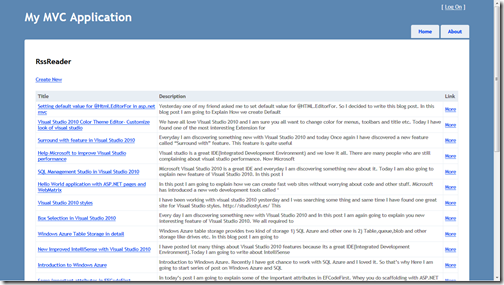

RssReader

So that’s it. Isn’t that cool? With the few lines of code we have created a Basic RSS Reader. Hope you like it. Stay tuned for more.. Till then Happy Programming..

Shout itkick it on DotNetKicks.com
Share:
Tuesday, August 16, 2011

Setting default value for @Html.EditorFor in asp.net mvc

Yesterday one of my friend asked me to set default value for @HTML.EditorFor in ASP.NET MVC. So I decided to write this blog post. In this blog post I am going to Explain How we create Default values for model Entities. So Let’s start this via taking a simple example Model class called User. In User Model class I have created two properties UserName and UserJoinedDate. Following is a code for that.
using System;

using System.Collections.Generic;

using System.Linq;

using System.Web;


namespace CodeSimplified.Models

{

public class User

{

    private DateTime _userJoinDate = DateTime.Now;


    public DateTime UserJoinDate

    {

        get

        {

            return _userJoinDate;

        }

        set

        {

            _userJoinDate = value;

        }

    }


    public string UserName

    { get; set; }

}

}
As you can see in above class username is default property while for UserJoinedDate I have used old method of declaring properties. Where I have assigned a private variable with System DateTime.
Now let’s Create a Action Result User in Home Controller like following where I am returning a new User View like following.

using System;

using System.Collections.Generic;

using System.Linq;

using System.Web;

using System.Web.Mvc;


namespace CodeSimplified.Controllers

{

public class HomeController : Controller

{

    public ActionResult Index()

    {

        ViewBag.Message = "Welcome to ASP.NET MVC!";


        return View();

    }


    public ActionResult About()

    {

        return View();

    }


    public ActionResult User()

    { return View(new CodeSimplified.Models.User()); }

}

}

Now Let’s Create User View from the action right click Add view like following. Here I have created Strongly Typed view like following.


User

Once you click Add It will add a new View like following.

@model CodeSimplified.Models.User


@{

ViewBag.Title = "User";

}


<h2>User</h2>


<script src="@Url.Content("~/Scripts/jquery.validate.min.js")" type="text/javascript"></script>

<script src="@Url.Content("~/Scripts/jquery.validate.unobtrusive.min.js")" type="text/javascript"></script>


@using (Html.BeginForm()) {

@Html.ValidationSummary(true)

<fieldset>

    <legend>User</legend>


    <div class="editor-label">

        @Html.LabelFor(model => model.UserJoinDate)

    </div>

    <div class="editor-field">

        @Html.EditorFor(model => model.UserJoinDate)

        @Html.ValidationMessageFor(model => model.UserJoinDate)

    </div>


    <div class="editor-label">

        @Html.LabelFor(model => model.UserName)

    </div>

    <div class="editor-field">

        @Html.te

        @Html.EditorFor(model => model.UserName)

        @Html.ValidationMessageFor(model => model.UserName)

    </div>


    <p>

        <input type="submit" value="Create" />

    </p>

</fieldset>

}


<div>

@Html.ActionLink("Back to List", "Index")

</div>


Now everything is ready so Let's run that in browser. Following is the output as expected.

Browser

So that’s it. It’s very easy. Hope you liked it. Stay tuned for more.. Till then happy programming.

Shout itkick it on DotNetKicks.com
Share:
Saturday, August 13, 2011

Visual Studio 2010 Color Theme Editor- Customize look of visual studio

We have all love Visual Studio 2010 and I am sure you all want to change color for menus, toolbars and title etc. Today I have found one of the most interesting Extension for Visual studio 2010 from which you can manage all this things. Don’t believe me I’m sure you won’t believe but this reality and You can change the look of your favorite visual studio look and feel. There is a new extension called “Visual Studio Color Theme Editor” from which you can do all this stuff. Here is the link for that.

http://visualstudiogallery.msdn.microsoft.com/20cd93a2-c435-4d00-a797-499f16402378

Once you download and install this link a Theme Menu will be added to Visual Studio like following.

ThemeMenu

There are 8 themes provided by the Default. You can choose any one of them. Lets choose Emerald theme for visual studio and It will look like following.

EmerlandThemeForVisualStudio

Isn’t that great?. Even you can also design your own theme also. Click on Theme->Customize colors and then It will popup a dialog like following. where you can will get lots of things for which you can customize the color.


CustomisedColorDialogForVisualStudio

Isn’t that Great. Hoped You liked it. Stay tuned for more..Till then happy programming..


Shout itkick it on DotNetKicks.com
Share:
Tuesday, August 2, 2011

Surround with feature in Visual Studio 2010

Everyday I am discovering something new with Visual Studio 2010 and today Once again I have discovered a new feature called “Surround with” feature. This feature is quite useful when you have very big HTML element and You want to surround it some HTML or ASP.NET element i.e. Suppose there is one very big div there and you want to add update panel for Ajax . So let’s take a Simple Example over there. I am having a div which contain very big HTML in it. Like following.

<div>

 Very big HTML here.

</div>

Now let's put that div into update panel with Surround with feature. You can right click and click Surround With or You can directly have shortcut Ctrl+k, Ctrl +S like following.

SurroundMenu

Now once you click it It will popup three things. 1) ASP.NET 2) ASP.NET MVC 2 and 3) HTML. You can select element of any of that like following.

SurroundPopup

I am going select ASP.NET as we want to put Update panel over there. Once you click ASP.NET It will popup elements of asp.net. Here I have selected update panel as I want to put update panel covering this div like following.

UpdatePanel

Now once you click update panel it will put Update panel and div will be in content template of Update panel. Now our code will like following.

<asp:UpdatePanel runat="server">

 <ContentTemplate>

     <div>

         Very big HTML here.

     </div>

 </ContentTemplate>

</asp:UpdatePanel>

That's it. Isn't that cool?.Isn't visual studio 2010 is a great IDE? Hope you like it. Stay tuned for more.. Till then Happy Programming..

Shout itkick it on DotNetKicks.com
Share:
Sunday, July 31, 2011

Help Microsoft to improve Visual Studio performance

Visual studio is a great IDE(Integrated Development Environment) and we love it all. There are many people who are still complaining about visual studio performance. Now Microsoft Visual Studio team has release PerfWaston diagnostic tool that helps Visual Studio team to diagnose the performance problem. Also this tool will automatically report performance and other problem.

So please download the PerfWaston tool from below link.
http://visualstudiogallery.msdn.microsoft.com/fa85b17d-3df2-49b1-bee6-71527ffef441?SRC=Home

You can find more details about PerfWaston in following link.
http://blogs.msdn.com/b/visualstudio/archive/2011/05/02/perfwatson.aspx

Share:

SQL Management Studio in Visual Studio 2010

Microsoft Visual Studio 2010 is a great IDE and everyday I am discovering something new about it. Today I am also going to explain new feature of Visual Studio 2010. In this post I am going to Transact SQL Editor feature in Visual Studio 2010.

Visual Studio 2010 Ultimate Edition provides this great feature. You can run you SQL Queries in visual studio 2010 itself with all intellisense and all the stuff that SQL Server provides. Let’s explore in details.
To connect the database of your SQL Server in Visual studio Go to Data->Transact SQL Editor –>New Query connection like following.

SSMS 

Now once you click it will open the dialog box for connection SQL server like it. If you don’t have install anything it will install SQL Server 2008 express edition with Visual Studio 2010 Ultimate Edition. The dialog appear like following.


SQLServer

Once you are done with the connection it will open full fledge Query editor windows with intellisesnse like following.

Intellisense

Also it can connect to any databases including your SQL Azure databases also. Isn’t that great. You don’t need SQL management studio at all for the basic database operations. That’s it. Hope you like it. Stay tuned for more.. Till then happy programming.


Shout itkick it on DotNetKicks.com
Share:
Monday, July 25, 2011

Hello World application with ASP.NET pages and WebMatrix

In this post I am going to explain how we can create fast web sites without worrying about code and other stuff. Microsoft has introduced a new web development tools called ‘WebMatrix’. It’s a free tool provided by Microsoft to create website fast.

What is WebMatrix?

Web Matrix is a free tool provided by Microsoft for website development. You can develop websites lightening fast with the help of Microsoft Web Matrix. It includes IIS express(express version of IIS) and SQL Server Compact (Compact edition of SQL Server database). It also contains lots of popular web application templates like wordpress ,blogengine etc. You can also create dynamic web pages with WebMatrix. Here is the link from where you can download WebMatrix.

http://go.microsoft.com/fwlink/?LinkID=205867

What is asp.net Pages?


ASP.NET pages are one of easiest way to create websites pages. You can use Razor and all other syntax to create webpages. You can write script tag to write dynamic code and you can also write HTML in same page.

Creating Hello World application with WebMatrix


Now let’s create a very basic Hello World application without writing any dynamic code. So let’s first open WebMatrix and it will show start up page like following.


WebMatrix

Here you will have four options My Sites, Site from Open Source Gallery, Sites from Template and Site from folder. I want to create a new site so I have clicked on Site from template. Once you click on that you will be presented to Site from template dialog where you have different options like Empty Site,Starter site,Bakery etc. like following.

EmptySite

As I want to create a very basic site so I have clicked Empty site.Once you click on empty site your site will be created and you will presented to following screen.

SiteStructure

Now its time to create new page for the site. So I have clicked File->New Pages and you will be presented to page dialog like following where different options are available like HTML,CSS,Jscript,CHTML etc.

CSHTML

I have selected CSHTML as I want to have my site dynamic so I have one page called default.cshtml and then I have written Hello world HTML like following.

<!DOCTYPE html>

<html lang="en">

   <head>

       <meta charset="utf-8" />

       <title></title>

   </head>

   <body>

       <h1>Hello World</h1>

   </body>

</html>

Now let's run site in browser and following is the output.

HelloWorld

That’s it. It’s so easy. In future post I am going to write some dynamic code using Microsoft Web Matrix.Hope you like it..Stay tuned for more.. Till than happy programming..

kick it on DotNetKicks.comShout it
Share:
Sunday, July 24, 2011

Visual Studio 2010 styles

I have been working with visual studio 2010 yesterday and I was searching some thing and same time I have found one great site for Visual Studio styles. http://studiostyl.es/ This site is cool and you can find lots of visual studio 2010 styles of your choice. Here is the screenshot of site.


Style

You can create your own color schemes for visual studio also. I have downloaded the first one(Son of Obsidian). It will be visual studio settings file.Once you downloaded you can import like following. GoTo Tools->Import and export settings in Visual Studio 2010. Once you click this It will import and export dialog like following.


ImportExportDialog

I have selected Import selected environment setting and clicked next on next screen you will have option to save your visual studio settings like following.

SaveYourSettings

Clicking on next you will have options for different visual studio 2010 Style like following.

ChooseStyle

Click on browse and select your downloaded style like following.

OpenStyle

Click on open and then you will represented to recent file options click next You will come to final settings wizard like following.

FinishStyle

Click on finish now our style is applied.Close the dialog and open your project and you can see new color scheme for your visual studio 2010 like following.

VisualStudio2010Style

That’s it. Hope you like it. Stay tuned for more..Till then happy programming..


kick it on DotNetKicks.comShout it
Share:
Friday, July 22, 2011

Box Selection in Visual Studio 2010

Every day I am discovering something new with Visual Studio 2010 and In this post I am again going to explain you new interesting feature of Visual Studio 2010. We all required to modify the code in bulk some time and there is a new features for Visual Studio 2010 which enables to made changes in multiple line at same time. Let’s take a simple example like following.


using System;

namespace Parallel
{
  class Program
  {
         private int a=10;
         private int b=10;
         private int c=10;

         static void Main(string[] args)
         {

         }  
  }
}

In above code I have three private variable a,b and c and now I want to make them protected. There is two way either I do manually one by one or I can do it with box selection and modify them together. It very easy to use this feature Press ALT+ SHIFT and draw box with help of mouse on the code which you need to modify like following.


SelectedBox

Now I want to make it protected so I started writing protected and it will modify all the line at same time like following.

ChangedCode

And now my code is like following.

using System;

namespace Parallel
{
  class Program
  {
         protected int a=10;
         protected int b=10;
         protected int c=10;

         static void Main(string[] args)
         {

         }  
  }
}

That's it. Hope you like it… Stay tuned for more…Till then Happy programming.


Shout itkick it on DotNetKicks.com
Share:
Tuesday, July 19, 2011

Windows Azure Table Storage in detail

Windows Azure table storage provides two kind of storage 1) SQL Azure and other one is 2) Table,queue,blob and other storage like drives etc. In this blog post I am going to explain Table storage in details.

What is Windows Azure Table Storage:


Windows Azure table storage is a service provided by Azure platform to store data in form relational tables in windows azure storage instead of normal RDBMS System. It is a structured storage provided by Azure platform. The table storage which you create with windows azure is Unique. An account of windows azure can have any number of table storage.

Table Storage in details:


There are three important aspects when you deal with windows azure table services. Table,Entities and Properties. Here table is similar to storing data in spread sheet or storing in table with relational databases. Entity represents particular row in the table and property represents a particular column or cell in row. There are three system properties of each entity.
  1. Partition Key
  2. Row Key
  3. Time Stamp

Partition Key:


The partition key is a unique key value that is used to group, or partition, related data on same storage node. As we all know that internally data will stored in hard disks in table storage so whenever your data grows then at that time your data may be partitioned into multiple hard drives. At that time this partition key will keep all the data on the same storage nodes. So partition key is used to organize data in storage.

Row Key:


Row key uniquely identifies a specific entities on a partition. Different partition keys may share the same row key, but the same partition may not have two entities with the same row key.The Row Key property is optional and may also be an empty string if all that is needed for uniqueness is the Partition Key value
The PartitionKey and RowKey properties both have String values (up to 1KB in size) and together they form a unique primary key for an entity in a table.

TimeStamp:


Time stamp property has a DateTime value maintained by the Windows Azure Table System to facilitate optimistic concurrency.

Column Types in Table Storage:


Table storage in windows azure support following types of columns.
  1. byte[]
  2. bool
  3. DateTime
  4. double
  5. Guid
  6. Int32 or Int
  7. Int64 or long
  8. String.
In next post I will create application for table storage. That’s it. Hope you like it. Stay tuned for more.. Till then happy programming..

Shout it

kick it on DotNetKicks.com
Share:
Sunday, July 17, 2011

New Improved IntelliSense with Visual Studio 2010

I have posted lot many things about Visual Studio 2010 features because its a great IDE(Integrated Development Environment).Today I am going to write about IntelliSense improvement in Visual Studio 2010. Today when I was working with Visual Studio 2008 for a old project(Nowadays I am working with Visual Studio 2010), I have found new improve IntelliSense feature in Visual Studio 2010.


Filtering:


Visual Studio 2010 IntelliSense is filtered better than Visual Studio 2008. I have created a sample application and I am writing Console.ReadLine that you can see in following image its filtering with read only.

Intellisense

In earlier version it was not possible.Hope you like it. Stay tuned for more.. Happy Programming..

Shout it

kick it on DotNetKicks.com
Share:
Saturday, July 16, 2011

Introduction to Windows Azure

Recently I have got chance to work with SQL Azure and I loved it. So that’s why Here I am going to start series of post on Windows Azure and SQL Server Azure. In first post of this series I am going to introduce you windows azure platform. I know there are many peoples that may find this post as very beginner level but We all have started from beginner level at some point of time. So It’s better to start at beginner level and then go through step by step overview.

What is Windows Azure:


Well simplest answer in this simple language to above question is “ It’s a operating system which hosts number of services on cloud”. Microsoft has developed this platform to leverage services into the cloud. In azure world you can have application and databases running on cloud. You don’t have to worry about the infrastructure of servers and all other stuff. They will be automatically done by windows azure plate form itself. All you have need to do buy a windows azure services and then developed application with the SDK provided by Microsoft and deploy it. Your application will be ready to serve. You can add multiple instances of server as per your application requirement.

Developing windows azure application is slightly different from normal traditional applications. But developer can still use visual studio 2010 for that. It can also host PHP,Java and other applications also. It does not required to have proprietary software to write application. In fact you can use windows azure with Visual Studio 2010 express edition also.

Roles:

In windows azure everything is based on Roles. There are two kind of roles available for windows azure.
  1. Web Role
  2. Worker Role
Web Role:
You can think web role as web server where we can host our web application or web site. They provide public computers to connect your application like a simple website url i.e. myapplication.cloudapp.net etc. You can run the application with standard HTTP and HTTPS ports also. Even you can have multiple web roles for your single application as per your requirement.
Worker Role:
You can defined Worker Role as some kind of services that works behind the web application. i.e. A window service to create thumbnail of images to display it in web application or a caching service etc. Worker roles are also available outside the world they can talk to any application.

Storage Resources available in Windows Azure:


Azure provide two kind of storage facility In built storage in Azure where we can store data in blobs,queues,tables, drives which are used for following purposes.
  1. Blob- Used to store large amount of data.
  2. Queues-Background work processing
  3. Table- Storage for fast retrieval
  4. Drives-NTFS Formatted page blobs
Windows Azure also provides storage facility with SQL Azure.SQL Azure is a database in cloud where you can almost have all functionalities of SQL Server in cloud. I will cover about above topic in details in forthcoming posts.

All types of roles comes in four verities: Small,Medium, Large and Extra large. All roles are virtual machines. Each represents an increase in pricing and has a different set of specifications that govern how much RAM, local storage space and CPU cores are available to the role as described below:


Size CPU Cores Memory Disk Space for Local Storage Resources
Small 1 1.7 GB 250 GB
Medium 2 3.5 GB 500 GB
Large 4 7 GB 1000 GB
Extra-large 8 14 GB 2000 GB


That’s it. Hope you liked this post. In forthcoming post I am going to explain you can use windows azure in your application with example. Till that stay tuned for more.. Happy programming..


Shout it

kick it on DotNetKicks.com
Share:
Friday, July 15, 2011

Some important attributes in EFCodeFirst

In today’s post I am going to explain some of the important attributes in EFCodeFirst. Whey you do scaffolding with ASP.NET MVC this all attributes are where much important. So Let’s explore all the attributes.

Key Attribute:

When you put this attribute in the class it tell that this property is part of the primary key and If you use code first when its create table based on this entity then it will be a part of primary key of table. Here is the sample example of that.
[Key]

public int ArticleId { get; set; }
Here article ID will act as primary key.

Foreign Key Attribute:

This attribute is very useful when you deal with interrelated tables You can specify the column in entity which is foreign key for that Like following.
[ForeignKey("CategoryId")]

public ICollection<Category> Categories { get; set; }
In above example CategoryId is a foreign key of category table to article table.

ScaffoldColumn Attribute:

When you Scaffold your application with ASP.NET MVC scaffold feature or dynamic data with asp.net webforms this attribute will tell that this column need to have field for that. You can write that column like following.
[ScaffoldColumn(false)]

public int ArticleId { get; set; }
Here it will tell article id will not have UI in scaffoling.

StringLength Attribute:

This attribute is used to specify the maximum length of a string. This attribute is very usefull in validation and other stuff. This attribute only applied to the Stringlength property like following.
[StringLength(512)]

public string Title { get; set; }
Here in the above code it tell that title could not have more then 512 character string.

There lots of other attributes also. I will blog about it in future posts. Hope you liked this. Stay tuned for more..Happy Programming.

Shout it

kick it on DotNetKicks.com
Share:

Support this blog-Buy me a coffee

Buy me a coffeeBuy me a coffee
Search This Blog
Subscribe to my blog


My Mvp Profile
Follow us on facebook
Blog Archive
Total Pageviews