Saturday, May 5, 2018

A minimal web application structure with technologies like node.js, typescript, express

Recently, I have been working the lot with Node.js and TypeScript. And I absolutely love TypeScript due to its features. I was actually looking for a boilerplate code to start which should be very easy to understand. But there was no code there. So I decided to create a minimum web application structure. I have used it in some project and I was quite happy with it.

So I thought why should I make it open source so that people can also get benefited by this. So here I am presenting A minimal Web Application Structure with technologies like Node.js, TypeScript, and Express.

You can find the complete source code on Github at following location - https://github.com/dotnetjalps/minimum-nodejs-typescript-express

How to Run this Project:

To run this project you need to first install all the NPM packages via the following command.
npm install 
Then you can run this project with the following command.
npm start

Directory Structure Of Project:

  • App.ts – Typescript file for creating express application class and where we have initialized the application.
  • routes.ts - Typescript files for creating all the routes under Init() Method.
  • package.json - Contains all the packages and dev dependencies required for this application. You can add more as your requirement.
  • tsconfig.json - Where all the typescript configuration is there and we converting typescript into ES5.
  • Controller Folder - Contains all the classes for the controller of the express application
  • tsconfig.josn  - Contains all the rules for TypeScript linting.
I’m looking for constructive feedback on this and I’m hoping that I will get it.
Share:
Friday, April 27, 2018

Flexible Object Mapping in Entity Framework Core 2.0

Entity Framework 2.0 is out for some time. If you don’t know Entity Framework 2.0 is a lightweight, extensible and Cross-Platform Object-relational mapper from Microsoft. It is a new version of Entity Framework which is now cross-platform and can now run now operating system like Linux, Mac etc.With Entity Framework Core 2.0, There are tons of ways to create a table and we are going to see one of that. In this blog post, We are going to see how we are going to see how we can create a field for private fields in the table.

So what we are waiting for. Let’s get started.

Flexible Object Mapping in Entity Framework Core 2.0:

So in this example, We are going to create a Console Application like following.

new-project-entity-framework-core

Once we are done with Creating Application We are going to insert NuGet Package for EF Core like below.

nuget-package-entity-framework-core

You can also install it via running following command.
Install-Package Microsoft.EntityFrameworkCore -Version 2.0.2
Here we are going to install SQL Server Express as a database so we need to install Nuget Package for that also.

enttity-framework-core-sqlserver-nuget-package

You can also install via running following command.
Install-Package Microsoft.EntityFrameworkCore.SqlServer -Version 2.0.2
Now it’s time to write some code. First of all, We are going to create A model called Student and In that, we are going to have two private fields.
namespace EFCore2Mapping
{
    public class Student
    {

        public int StudentId { get; set; }
        public string FirstName { get; set; }
        public string LastName { get; set; }


        private string _standard;
        private string _division;


        public void AssignStandard(string standard)
        {
            _standard = standard;
        }

        public void AssignDivision(string division)
        {
            _division = division;
        }

        public string GetStandard()
        {
            return _standard;
        }

        public string GetDivision()
        {
            return _division;
        }
    }
}

Here in the above code, You have seen that I have created few fields for Student Model. If you see it carefully, You can see that there are two private fields _standard and _division.  And there are two methods for each field to get and set private variables.

Now let’s write our Entity Framework Data Context. That’s where the Magic going to happen.
using Microsoft.EntityFrameworkCore;

namespace EFCore2Mapping
{
    public class StudentContext : DbContext
    {
        public DbSet<Student> Student { get; set; }
        protected override void OnConfiguring(DbContextOptionsBuilder optionsBuilder)
        {
            optionsBuilder.UseSqlServer("Data Source=Your Server;Initial Catalog=Student;User ID=sa;Password=Jalpesh@123");
        }

        protected override void OnModelCreating(ModelBuilder modelBuilder)
        {
            modelBuilder.Entity<Student>().Property<string>("Division").HasField("_division");
            modelBuilder.Entity<Student>().Property<string>("Standard").HasField("_standard");
        }
    }
}

Here in the above code, If you see I have created a dataset for our student model that is a standard way to create a table for the map. There is another method OnCofiguring for giving database connection string. There are is another method called OnModelCreating which Entity framework core uses to create tables. Here If you see that I have written code to map private fields to Table Fields so that two fields Division and Standard will be created with tables.

Now let’s run the migration to create a table like following.

migration-to-create-private-fields-in-table-entity-framework-core

You need to go to the Nuget Package Manager Console and then run the following command.
Add Migration Initial Create
Once you are done with it. It will create the tables in the database like following.

fields-created-in-SQL-Server

Now let’s write some code insert data in the table. So following is code for the same.
using System;
using System.Collections.Generic;
using System.Linq;

namespace EFCore2Mapping
{
    class Program
    {
        static void Main(string[] args)
        {

            List<Student> ExistingStudents = new List<Student>();

            Student student = new Student
            {
                FirstName = "Joe",
                LastName = "Tailor",
            };
            student.AssignStandard("5");
            student.AssignDivision("A");

            using (StudentContext studentConext = new StudentContext())
            {
                ///Adding a new Student;
                studentConext.Student.Add(student);
                studentConext.SaveChanges();


                ///Retriviting newly added student
                ExistingStudents = studentConext.Student.ToList();
                
            }

            foreach(Student s in ExistingStudents)
            {
                Console.WriteLine($"Student Id: {s.StudentId}");
                Console.WriteLine($"First Name: {s.FirstName}");
                Console.WriteLine($"Last Name:{s.LastName}");
                Console.WriteLine($"Standard:{s.GetStandard()}");
                Console.WriteLine($"Division:{s.GetDivision()}");
            }
        }
    }
}

Here you can see that in the above code, I have created Student called Joe Tailor and then I have saved it in the database and then I have written the code for fetching the student data and print it via for loop.

When you run this application It will show like following.

output-entity-framework-core-flexible-column-mapping

That’s it. Here you can see that It’s very easy to Manipulate the Columns with Entity Framework core 2.0. Hope you like it.
This complete blog post source  code available on github at - https://github.com/dotnetjalps/EFCoreFlexibleObjectMapping
Share:
Saturday, April 7, 2018

Register for Global Azure Bootcamp 2018–from Ahmedabad User Group

Friends, We are back with new events again. We are going to host Global Azure Bootcamp 2018.

bootcamplogo


About Global Azure Bootcamp:

If you don’t know what is Global Azure Bootcamp then it is a worldwide Event for Azure.  All around the world user groups and communities want to learn about Azure and Cloud Computing!

On April 21, 2018, all communities will come together once again in the sixth great Global Azure Bootcamp event! Each user group will organize their own one-day deep dive class on Azure the way they see fit and how it works for their members. The result is that thousands of people get to learn about Azure and join together online under the social hashtag #GlobalAzure!

Ahmedabad User Group is also organizing the same. This time we want to put it on a bigger level. So there will be lots more to learn, A great opportunity to network with like-minded people. Best Part you will get a chance to meet lots of awesome speakers. It has also got lunch included!.

I am also one of the speakers and will be presenting About Azure Active Directory.

So what you are waiting for go Grab a chance to meet and learn about Azure Cloud Platform.
Here is a link from where you can register for Global Azure Bootcamp 2018.

https://www.eventbrite.com/e/global-azure-bootcamp-2018-by-ahmedabadusergroup-tickets-40757803688


I am hoping to see you everybody there!!. Go Grab before it gets full!.
Share:

Video Recording : Webinar on ASP.NET Core on Linux

I have done a Webinar for DotNetTricks.com about ASP.NET Core on Linux. There were lots of curiosity about it and lots of people asked for the recording of Webinar so here we go Following is a link of recording of Webinar for ASP.NET Core on Linux. You can watch the full webinar on youtube at following.

https://www.youtube.com/watch?v=Hf0F7nZCTXM&t=706s


I would also like to Thanks Shailendra and Whole DotNetTricks team for the having me on this webinar.

Thank you. Stay tuned there were lots of stuff coming from ASP.NET core and Node.js.
Share:
Saturday, March 10, 2018

Solution: (Error)Unable to Correct problems, You have held broken packages–Install .NET Core on Ubuntu

Recently, I have been using Linux(Ubuntu) machine on my virtual box quite a bit and as  Microsoft.NET Developer I want to install .NET Core on Ubuntu. So I tried following the instruction from below link to install .NET core on Ubuntu 16.04.

https://docs.microsoft.com/en-us/dotnet/core/linux-prerequisites?tabs=netcore2x

But I was not unable to install .NET Core and I was getting following errors.

The following packages have unmet dependencies:
  dotnet-sdk-2.1.4 : Depends: dotnet-runtime-2.0.5 but it is not going to be installed
E: Unable to correct problems, you have held broken packages.
You can see the same error in the following screenshot.

error-ubuntu-net-core-214

I was a little bit curious about that and then I have read carefully the documentation mentioned on the above link and I have found that .NET Core require following require following Ubuntu distributions as Prerequisites.

  • libunwind8
  • liblttng-ust0
  • libcurl3
  • libssl1.0.0
  • libuuid1
  • libkrb5-3
  • zlib1g
  • libicu52 (for 14.X)
  • libicu55 (for 16.X)
  • libicu57 (for 17.X)

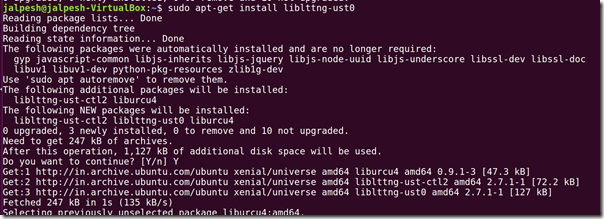
Most of the time it should be installed by default with sudo apt-get update and sudo apt-get upgrade command but sometimes it does not. So what I did install all these distributions one by one via sudo apt-get install command and in my case, I was not having liblttng-ust0 distribution on my machine. So I have installed it via the following command.

sudo apt-get install liblttng-ust0
You can also see below screenshot for the same.

install-ubuntu-distribution-for-netcore

Then I was able to install .NET Core on my machine via following above link on documentation.

install-netcore-ubuntu

And now it’s running .NET Core v 2.1.4 on my Ubuntu VirtualBox as you can see it in below dotnet version command.

net-core-version-command

I was able to solve my problem this and so I thought it will be a good idea to share it on my blog so it will help people who are having the same problem.

Stay tuned for more there is a lot more coming for asp.net core and node.js on Linux on future blog posts.
Share:

How to install Robo3T(Formerly RobMongo) on Ubuntu

Robo3T formerly known as RobMongo is one of best GUI tools for the managing and querying MongoDB database. I have been using it quite often for creating applications with MongoDB and Node.js. Recently a new version made available but there were no instructions for installing it on Ubuntu. So I thought it would be a great idea to write a blog post about it.

To install it. First, we need to open terminal and download tar.gz file from official site with the following command.
wget https://download.robomongo.org/1.2.1/linux/robo3t-1.2.1-linux-x86_64-3e50a65.tar.gz
robo3t-install-download-ubuntu

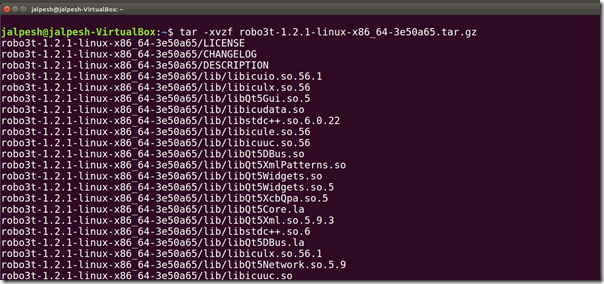
Once download will complete we need to extract tar.gz file with following command
tar -xvzf robo3t-1.2.1-linux-x86_64-3e50a65.tar.gz
extract-tar-file-robo3t-robmongo-ubuntu

As now we have extract it into the folder we need to move that under /usr/local/bin directory to make it available for all the users. So todo that we need to first create robo3t directly under /usr/local/bin folder with following command.
sudo mkdir /usr/local/bin/robo3t
mkdir-robo3t-robmongo-ubuntu

Then we need to move all the files of extracted folder into robo3t folder under /usr/local/bin directory with following command.
sudo mv  robo3t-1.2.1-linux-x86_64-3e50a65/* /usr/local/bin/robo3t
move-content-to-robo35-ubuntu

Now, We need to give permission to newly created directory with following command.
sudo chmod +x robo3t ./robo3t
permission-robo3t-robmongo-ubuntu

Once you are done with it. You are ready to use robo3t. You can run it from command line from usr/local/bin directory via following command.
./robo3t
run-robo35-command-line

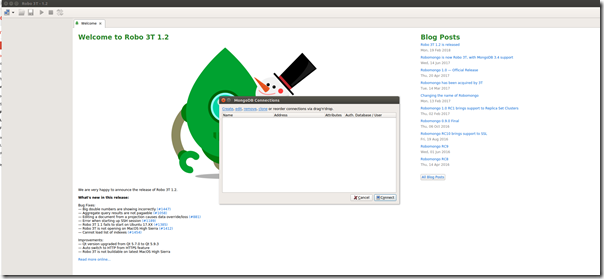
And it will run the Robo3t like following.

robo3t-on-ubuntu

That’s it. Hope you like, Stay tuned for more!!.
Share:
Wednesday, March 7, 2018

How to install Visual Studio code on Ubuntu

Recently I presented a Webinar on ASP.NET Core on Linux. Here I have displayed how we can use Visual Studio Code a Free Open Source Editor from Microsoft to develop application. One of frequently ask question was How I can install Visual Studio Code on Linux. Since lots of People are using Ubuntu as Development Machine I thought it will be a good idea to write a blog post about how to install Visual Studio code on Linux(Ubuntu Machine).

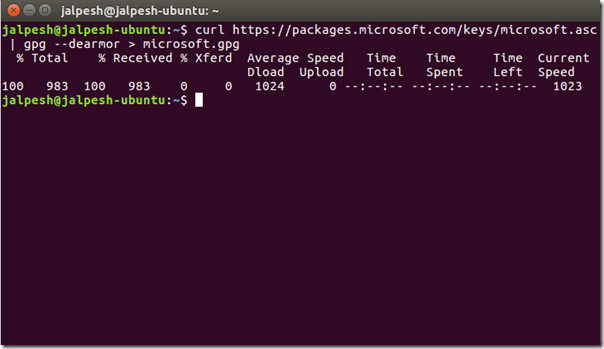
So first thing we need to do it open a terminal in Ubuntu and then we need to type following command one by one.
curl https://packages.microsoft.com/keys/microsoft.asc | gpg --dearmor > microsoft.gpg
Install-Visual-Studio-Code-Ubuntu

Then you need to run the following command to move gpg file download via Curl to etc/apt folder.
sudo mv microsoft.gpg /etc/apt/trusted.gpg.d/microsoft.gpg
Install-Visual-Studio-Code-Ubuntu2-move-folder

Now, You need to run following command.
sudo sh -c 'echo "deb [arch=amd64] https://packages.microsoft.com/repos/vscode stable main" > /etc/apt/sources.list.d/vscode.list'
package-cache-insert-vscode-ubuntu-linux

After that, you need to run Apt-get Command to update package cache and Apt-get install command to install visual studio code.
sudo apt-get update
sudo apt-get install code
pakcage-install-visual-studio-code

That’s it. You are done with installing Visual Studio Code. You can find more information about different Linux flavors at following  link on Visual Studio code.

https://code.visualstudio.com/docs/setup/linux

Hope you like it. Stay tuned for more!!
Share:
Saturday, February 10, 2018

How to install node.js and npm on Debian 9

In this blog, We are going to see how we can install the node.js and npm on the Debian Operating system. So let’s get started.

First of all Either you should use “Sudo” command or use your root users to run all this command so that it will be available to all the users on this machine.

So first we need to install node.js so for that there are multiple ways but I am going to use node source binary distribution so that we can get latest stable version of node.

You can find node source binary distribution at - https://github.com/nodesource/distributions

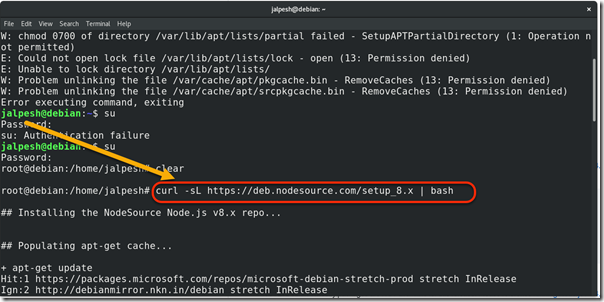
First, You need to run the following command.
curl -sL https://deb.nodesource.com/setup_8.x | bash -
install-nodejs-debian

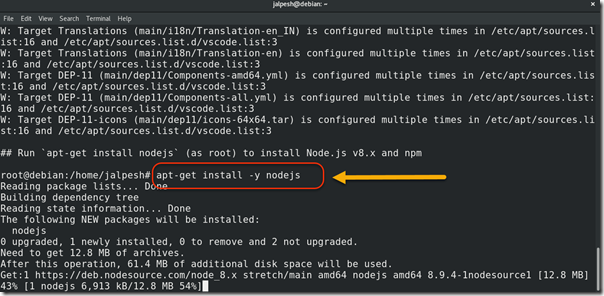
After that run the following command.
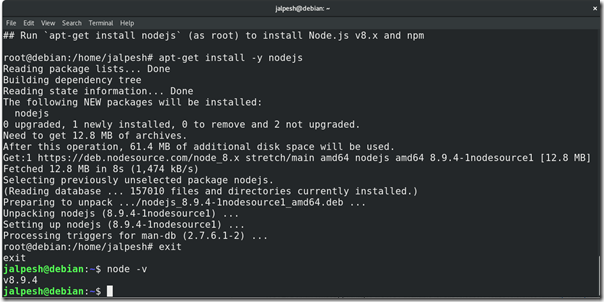
apt-get install -y nodejs
install-nodejs-debian2

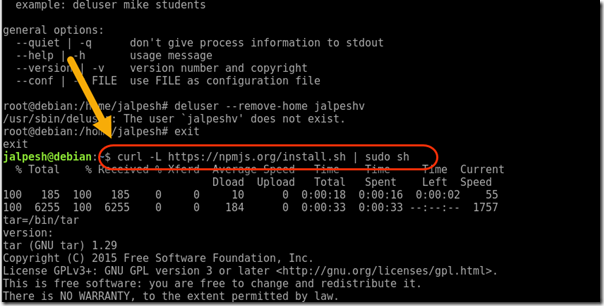
Then you need to install NPM for that you need run the following command.
curl -L https://npmjs.org/install.sh | sudo sh
install-npm-debian

Then you can check node.js version with node -v like shown in below image.

node-version-debian

That’s it. Now create your favorite node.js application. Hope you Enjoyed it. Stay tuned for more!!
Share:
Wednesday, February 7, 2018

4 Million Page Views and 800 blog post completed for my blog- dotnetjalps.com

As you know that I’m not super crazy about blog milestones but this is a special one and I could not resist sharing with you guys. This blog completed 4 Million Page Views and This is the 801st blog post I’m writing. What an amazing journey for this blog.

On this occasion of 4 million pages views I would like to thank my readers, friends and Mentors without them it was not possible. THANK YOU  VERY EVERYONE
This blog has started as a quest to see my name in search engines and then I got serious into blogging and then onwards never looked back. Again I am very thankful to my readers without their it was not possible. I host my blog on blogger.com so here are some of statistics on my blog.
Pageviews-blog-dotnetjalps

And here is the top 10 blog post for all time.

top-ten-blog-post-dotnetjalps

From the statistics, you can see I’m getting about 70,000 page views every month. and More than 3000 page views every day. This all done with genuine search engine optimization provided blogger.com. Also, I started tracking my page views from 2010. So actually it's more than 4 million page views.

On this occasion, I would definitely like to Thank my Wife Reeana and all the family members who sacrifice their time when I write this blog.

Now I will try to be more punctual about writing blogs and hopefully, you will get lots of new stuff like ASP.NET Core, SQL Server, My SQL, Linux, Node.js, Angular, Vue.js as I learned a lot of this new technologies and will share my experience with you guys.

Once again thank you all readers without you guys It would not have been possible.

Share:

Solved: Microsoft SQL Server Error 3403

This is a Guest Post from “Andrew Jackson”.

Bio of Andrew Jackon:

He is freelance SQL Server DBA. He is  fan of technology, programming, and entrepreneurship. He is  also interested in writing and web development and SQL Server blogger too. He like to share about SQL Server and the problems related to it as well as their solution and also He also  handles database related user queries, server or database maintenance, database management etc.

You can find his social handles at following.
Facebook: https://www.facebook.com/people/Andrew-Jackson/100008825676608
Twitter: https://twitter.com/jacksonandrew32
LinkedIn: https://www.linkedin.com/in/jackson-andrew-401147a5/

You find more about him at : https://about.me/theandrewjackson
From its powerful internal structure, fast performance, and reliability, SQL server is now widely accessed by several enterprise users. It is used to deal with bulk transaction processing, business programs, and content management. The Microsoft SQL server is chosen for its high-level security, scalability, and performance. Sometimes, corruption in the SQL database occurs due to the saving of a large amount of business information. This problem makes the server inaccessible, flashing an error message on the window.

One such message is ‘SQL server error 3403’, resulting in an unplanned downtime of the server.

image

Reason for SQL Server Error 3403:

Corruption and the server crash these two are the most common and root causes of the problem. Once the server crash takes place, the database verifies the transaction log. But, if the provided information does not match Object ID then, the application throws an error code 3403. It is possible that instead of these reasons there is some other cause of the problem. Following are those additional causes of SQL server error 3403 :
  • While updating the allocation page, the data gets written on the transaction log before the crashing takes place.
  • Another cause of the problem might be bad allocation activity by Microsoft SQL server.

How to Fix SQL Error 3403?:

The best way to deal with any of the SQL server error (including 3403) is to restore data from the recently created backup file. If you are having the backup file then, you just need to perform following steps :
  • First of all, drop the SQL server database and then, create a database for loading.
  • It’s time to restore database file and utilize online commands for activating restored files for use.
Note: Verify that the database files created at present must be having same size as of Sysusages value.

Alternative Solution to Fix SQL Server Error 3403:

It is possible that users might not be having a backup file with them. In such case, the only approach is to use SQL Recovery software, which restores the corrupt database with an ease. The software is a rapid technique for fixing SQL database files corruption without any efforts. What all you need to do is just browse corrupt MDF file. If you are unaware of corrupt SQL database location then, no need to worry because the software provides the solution for it. This product is also capable of recovering data from corrupt files, which are encrypted by Wallet Ransomware attack.

Conclusion:

Errors are uncertain situations, which acts as challenges for an individual. If an accurate workaround is not executed then, these situations can also result in another hazardous condition. It should be the duty of each and every server user to fix the error, just after their occurrence. There are two solutions on how to fix SQL error 3403 i.e., backup file restoration and SQL database recovery program. As per the availability, readers are free to catch any of the workarounds for resolving their problem.
Share:
Sunday, December 3, 2017

Creating Rest API with Node.js,Express and MySQL Part-1

With Node.js and express creating a Rest API is a piece of cake. In this blog post, we are going to see how we can create a rest API with Node.js, Express, and MySQL as a database.

Creating Database with MySQL:

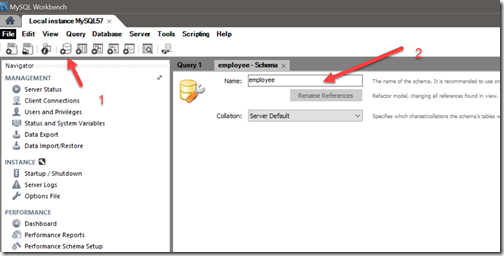
So let’s first with creating Database for our APIs. So todo that we need to create a new Schema from MySQL workbench like following.

database-creation-mysql

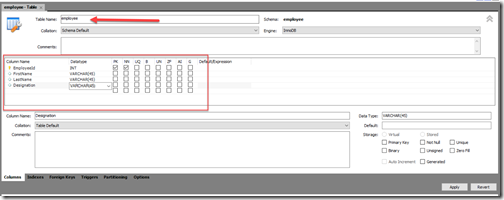
Here we are going to create a schema(database) called “employee”.  Then it’s time to create a Database Table and Let’s create a table like following.
create-table-mysql

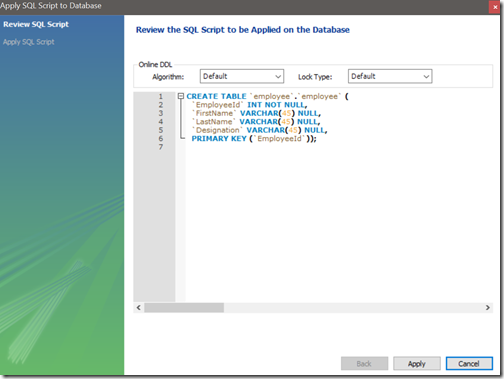
and Here is the SQL Script for creating a table.

database-table-script-mysql

Here we have 4 column of the table EmployeeId(Primary Key), First Name, Last Name and Designation of employee details.

CREATE TABLE `employee` (
  `EmployeeId` int(11) NOT NULL,
  `FirstName` varchar(45) DEFAULT NULL,
  `LastName` varchar(45) DEFAULT NULL,
  `Designation` varchar(45) DEFAULT NULL,
  PRIMARY KEY (`EmployeeId`)
) ENGINE=InnoDB DEFAULT CHARSET=utf8;

I have entered some sample data like following.

table-sample-data

Express Node.js application to create Rest API:

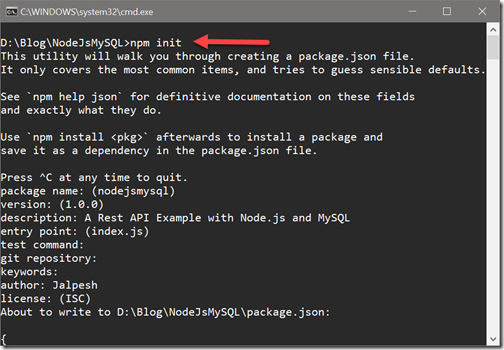
Now we have our database ready for MySQL and It’s time to create a new Node.js Express application. We can start with creating Package.Json with NPM init and run that command in command line.

npm init
It will ask you several questions to create your node an application like below.

npm-init

Once your basic node.js application is ready It’s time to install express via the following command.

npm install express –save
It will install express like below.

express-installer

Now we have created a node.js and express application. I have also installed MySQL and BodParser package and here’s how the package.json looks like.

{
  "name": "nodejsmysql",
  "version": "1.0.0",
  "description": "A Rest API Example with Node.js and MySQL",
  "main": "index.js",
  "scripts": {
    "test": "echo \"Error: no test specified\" && exit 1"
  },
  "author": "Jalpesh",
  "license": "ISC",
  "dependencies": {
    "body-parser": "^1.18.2",
    "express": "^4.16.2",
    "mysql": "^2.15.0"
  }
}
As now we are done with creating and configuring our node.js application It’s time to write code. First I have written following code to create a route of our API which will be a map to our API URL.
var express = require("express");
var app = express();
var bodyParser = require("body-parser");

app.use(bodyParser.urlencoded({ extended: true }));
app.use(bodyParser.json());

var port = process.env.por || 3000;
var router = express.Router();

app.use("/api/employee", router);
Here in the above code, you can see that I have created an express object as required and then I created a body-parse object which will be used for the posting/putting data into our API. Then I have created a port and get router of express and then created a route which will be our URL for API.
Now It’s time to write MySQL Connection code like below.
var mysql = require("mysql");

var con = mysql.createConnection({
    host: "youripformysql",
    user: "usrename",
    password: "password",
    database: "employee"
});
In the above code I have to get MySQL object via require and then I created a MySQL connection.  You need to pass the credentials there for your MySQL Credentials. Then I have written following code to get Employee table data with our get API.
router.get("/", function (req, res, next) {
    con.connect(function (err) {
        if (err) throw err;
        con.query("SELECT * FROM employee", function (err, result, fields) {
            if (err) throw err;
            res.send(JSON.stringify({
                "status": 200,
                "error": null,
                "response": result
            }));
        });
    });
});
Here in the above code, You can see that I have written Route.get method which will be used to get All Employees from the MySQL database and then I have written a Select Query to query data with “Employee” table. Then I have put result data as Json with the response object.
Now we have to start this application with app.use like the following code.
app.listen(port, function () {
    console.log("Express server running on port %d", port);
});
Now we can run the application with the following command.

node index.js
You can see same in above image.

node-run-express-application

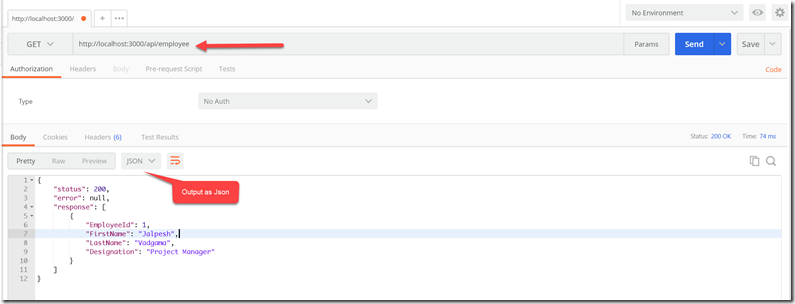
Now in a client like postman you can see the output like below.

output-as-json
That’s it. In blog post series we will see that how we can add/update and delete it. Stay tuned for more!!.

You can find complete source code above blog post at following location on github- https://github.com/dotnetjalps/RestAPINodeMySQL
Share:
Saturday, November 25, 2017

Video: How to use IIS Express with Visual Studio Code

Visual Studio Code is a Great Editor by Microsoft being Developed Open Source on Github and It is gaining lots of popularity and lots of Developers are using for creating applications in various languages. Their lots of features that are there for Developers and Still lots of features is not been explored or lots of useful extensions are not being explored. So I am creating few videos for explaining it’s feature and this video is one of that features.

IIS Express is a built-in web server for C# applications with Visual Studio and lots of Developers are using this. This video explains how we can use IIS Express with Visual Studio code. Please have a look at it and let me know how it was.


The plugin used in this video can be found at following location.
https://marketplace.visualstudio.com/items?itemName=warren-buckley.iis-express

And If you don’t know what is Visual Studio code then you find more about it at following location.
https://code.visualstudio.com/

Stay tuned for more!!.
Share:
Sunday, July 9, 2017

Microsoft MVP for the 6th time! Thank you, Microsoft

First all, Sorry for the late post. I am very happy and proud to announce that I have been awarded Microsoft Most Valuable Professional for the 6th time in “Visual Studio and Development" Category.


On this occasion, I would to Thank Microsoft for again such a wonderful gesture. I would also like to thank my MVP Community lead Deepak Rajendran  & team for their constant support. I would like to thanks, Biplab Paul and Gadharv Rawat for doing same earlier. Without the support of these guys, it would not have been possible to achieve this.

Also, I would like to thank my family for their constant support for compromising their time to do the community work. Special thank to my wife Reena. Behind every men’s success, there is a woman and she is the woman responsible for my success. I would like to dedicate this award to my family this time especially my little champ who is the inspiration for me to staying strong in any condition.

Also, I would like to thank Ahmedabad User Group and Microsoft for providing awesome opportunity to speak at various events.

Last but not least, THANK YOU my dear blog readers without you. It was not possible.
Share:

Video: How to debug Node.js Application with Visual Studio Code

Visual Studio code is a Great Editor and I like it very much. It support’s a lot of cool features our of box. Node.js Application debugging is one of them. It provides great debugging with node.js just like Visual Studio. I have created a small video demonstrating the same. Please have a look.


Share:
Wednesday, June 21, 2017

Video: Visual Studio 2017 Features

Visual Studio 2017 got lots of new features and so that I’ve created a new video for demonstrating all the features of video. Please have a look at that video at below.


Let me know what kind of video you want to watch more!. Stay tuned for more!
Share:
Saturday, June 17, 2017

Code Navigation features in Visual Studio Code

Visual Studio Code is an open source, free, Cross-platform editor and I have been using it now more than the year. I just simply loved this editor. It’s a got lot of feature and there are some cool navigation features there. In this blog post, we are going to explore those navigation features.

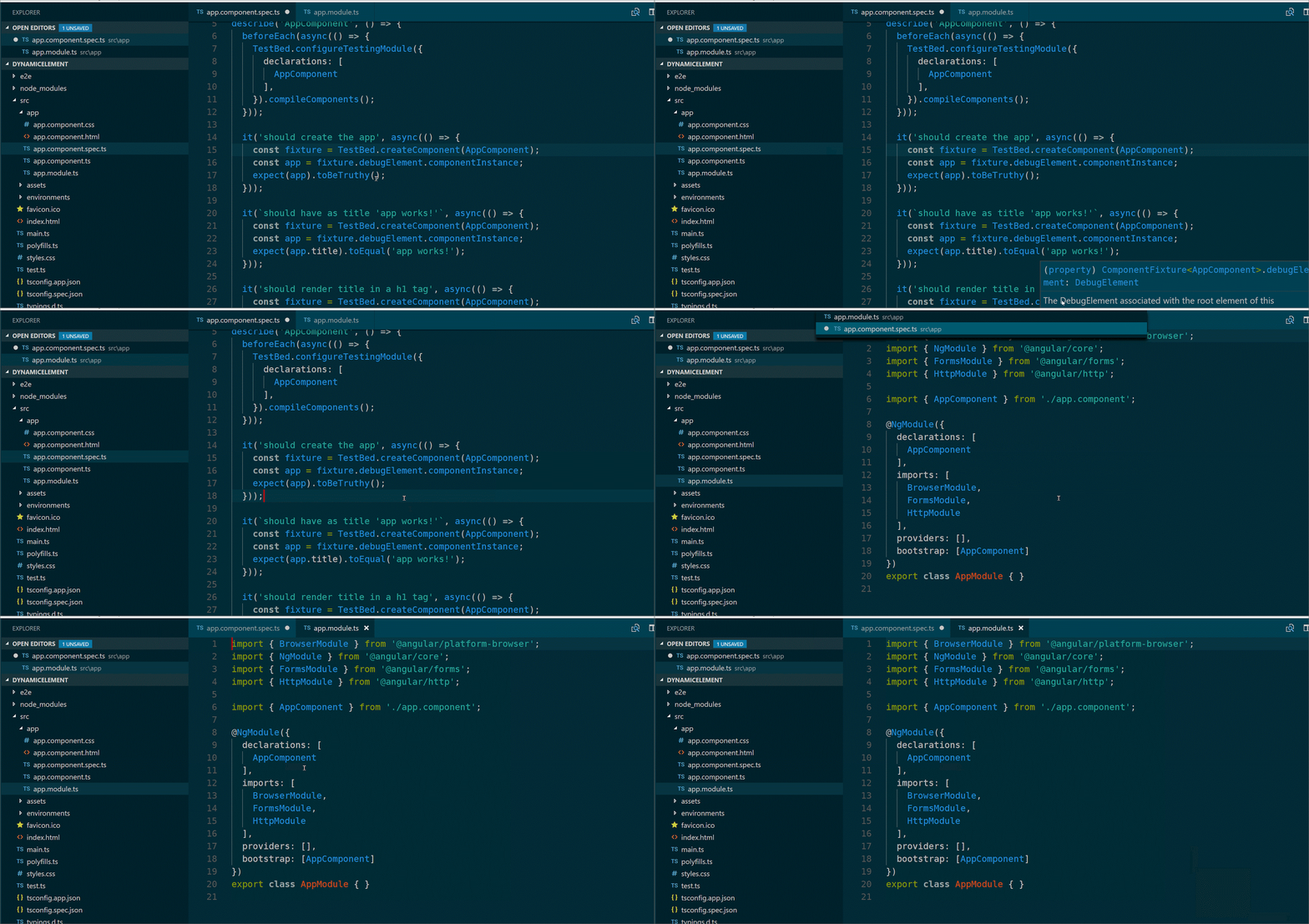
Quick Open File Navigation Features(Ctrl+Tab):

If you press Ctrl + Tab then it will show all the open files in Visual Studio Code.

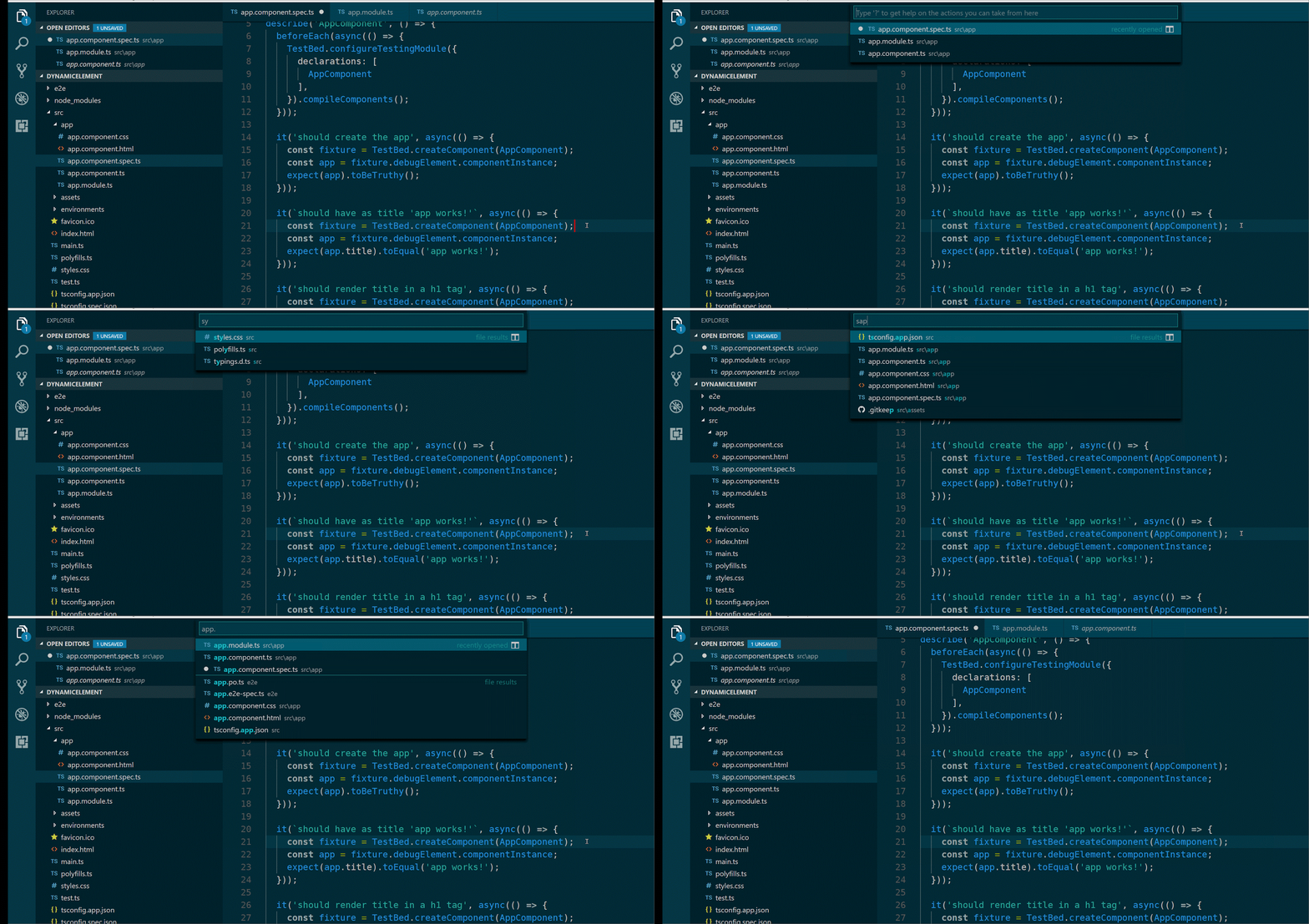
quick-file-navigation-feature

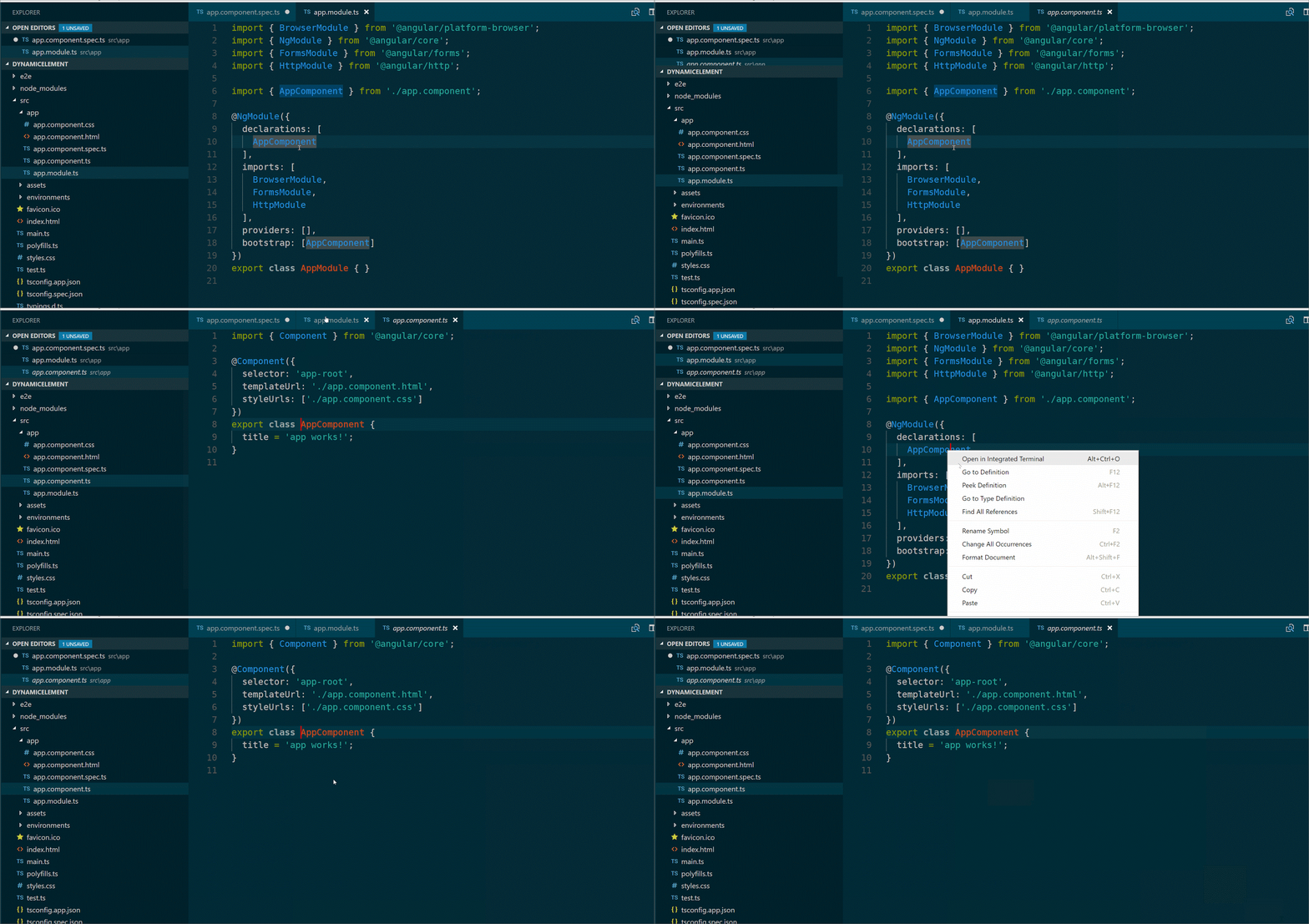
Go To Definition(F12):

If Language is supported in Visual Studio Code then you have that feature available just like have it in full Visual Studio IDE.  You can press F12 to go to definition and the same way you can also right click and select Go To Definition.

go-to-definition

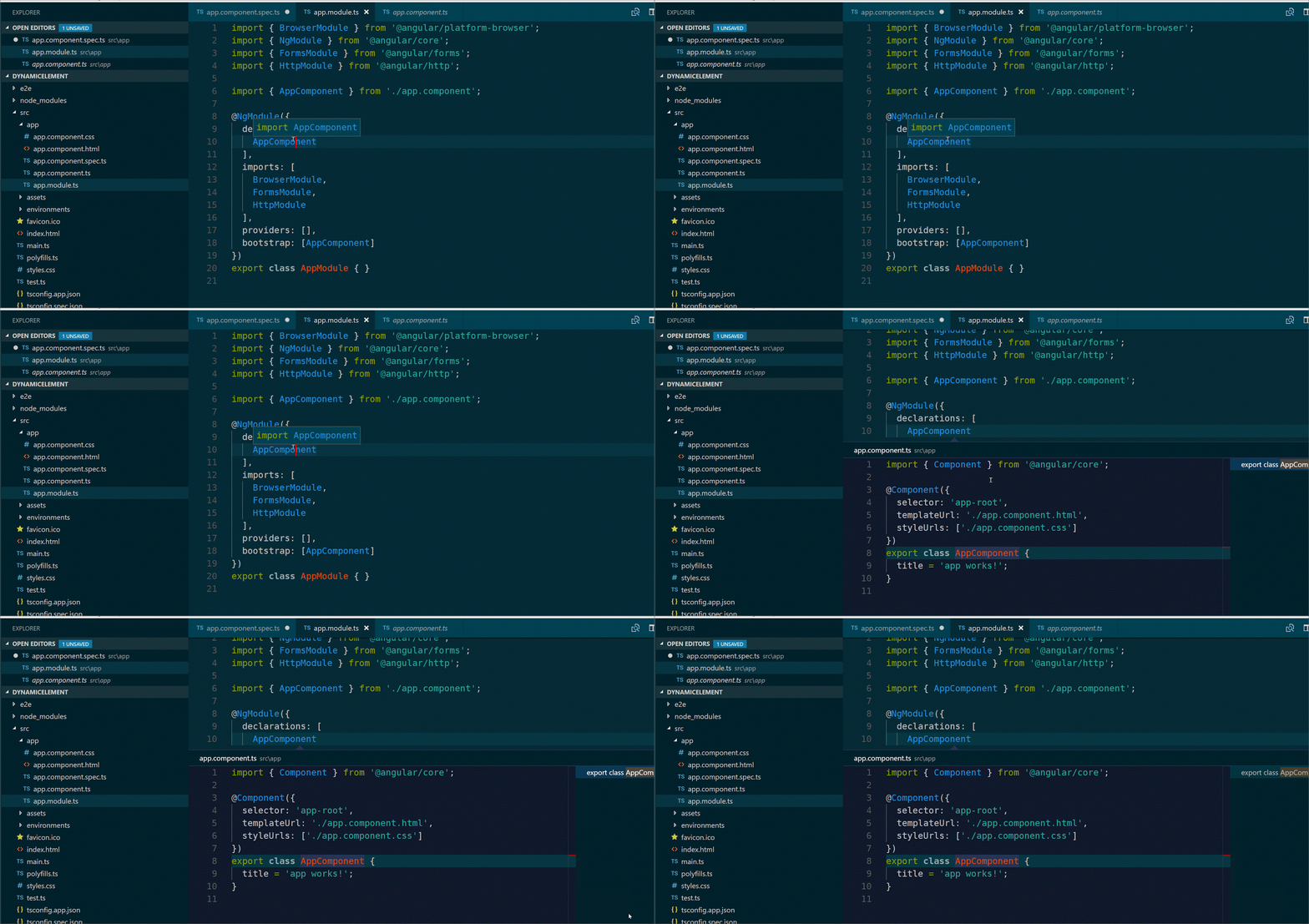
Peek Definition(Alt + F12):

Peek Definition is working same as Go To Definition the only difference is it will load a windows inline and show. It is quite useful when you want to quickly see something. You can use this feature via pressing Alt+F12.

peek-definition

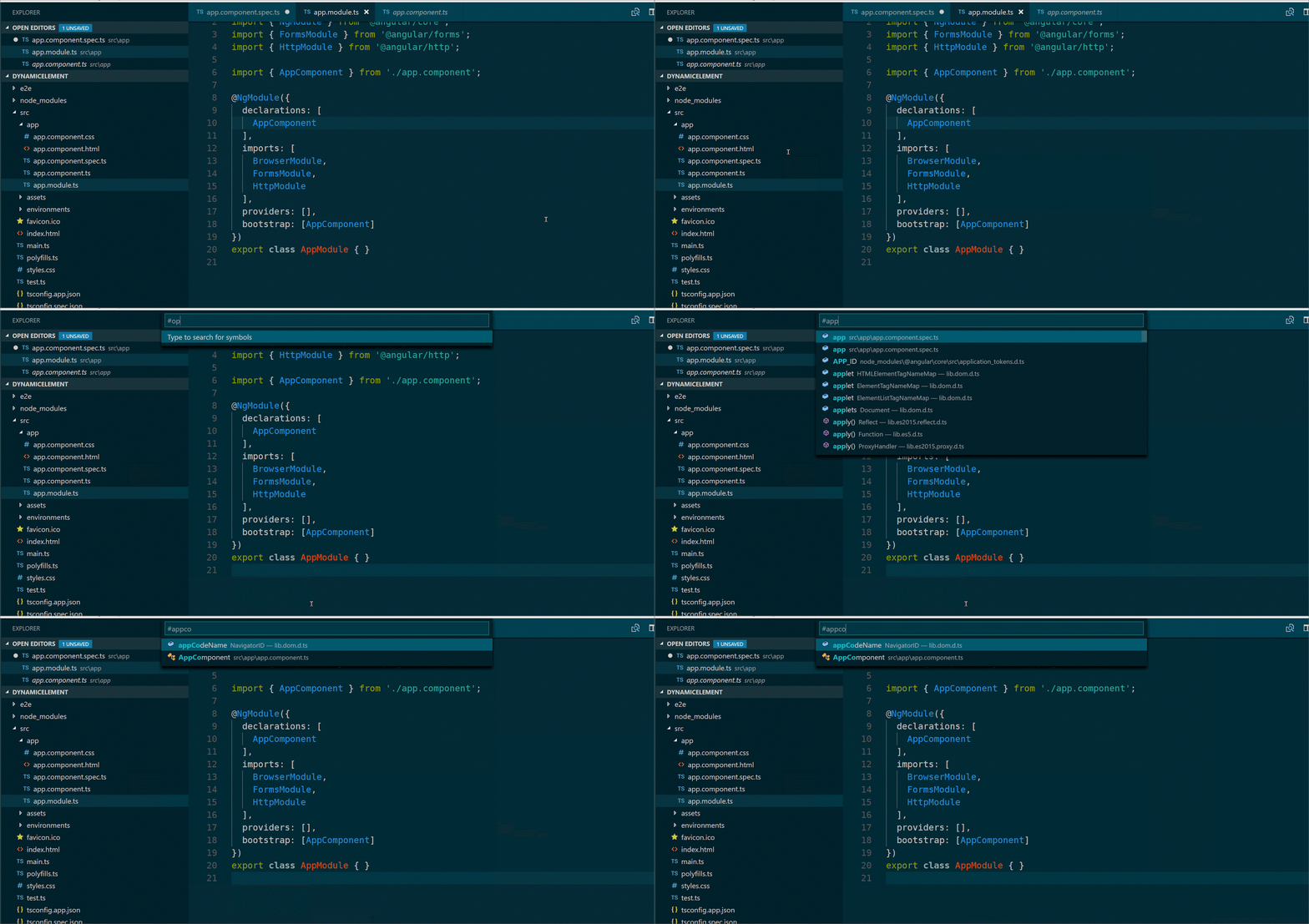
Open Symbol(Ctrl+T):

It also contains some Resharper like features you can go to any symbol via pressing Ctrl + T. Just type the first letter of a type you want to navigate to, regardless of which file.

open-symbol

Go To File(Ctrl + P):

You can also go to any file with Go To File feature of Visual Studio code via pressing Ctrl + P.   This quite useful when you have large code base.

go-to-file


There tons of other features available with Visual Studio code. So if you have not tried this editor I would highly recommend to try it. I’m sure you fall love in it. You can download Visual Studio code from the following location.

https://code.visualstudio.com/

Stay tuned for more!.
Share:
Saturday, May 13, 2017

My blog awarded top 60 Dot Net Blogs on Web from FeedSpot

It’s been a great year for me overall. It was a roller coaster ride for me. Recently I got an email from Anuj Founder of FeedSpot that My blog has been awarded as Top 60 DotNet Blog from FeedSpot.

Top60DotNetBlog

You can find complete list of Top 60 blog at following link.

http://blog.feedspot.com/dotnet_blogs/

My blog at 22 positions there.It’s great pleasure being part of Top 60 Dot Net Blog in Web. On this occasion I would like to thank my Family without there support it was not possible to bee there. Specially my wife Reena who sacrifies her time when I’m writing blog posts. Also I, would like to thank my entire audience and readers without them it was not possible to achieve such a great milestone.

Thank you very much everyone!!. Please keep reading my blog. Stay tuned!
Share:
Thursday, April 27, 2017

Global Azure Bootcamp 2017 by Ahmedabad User Group, Ahmedabad–A great event

The last Sunday on 22nd April 2017, We had great event 5th Annual Global Azure Bootcamp.

What is Global Azure Bootcamp:

If you have not heard about Global Azure Boot. It is the great event for learning and understanding Microsoft Cloud Platform Azure. There were more than 250 locations in the world where this event took place. Each user group or community has organized their own one day deep dive seminars on Azure to see how it can be useful to develop great applications.


You can find more about Particular event on the following location-
https://global.azurebootcamp.net/

About Global Azure Bootcamp 2017 Organized By Ahmedabad User Group:

First of all, I would like to thank our local sponsor Aptus who provided us the Venue for organizing the event. Thank you so much!

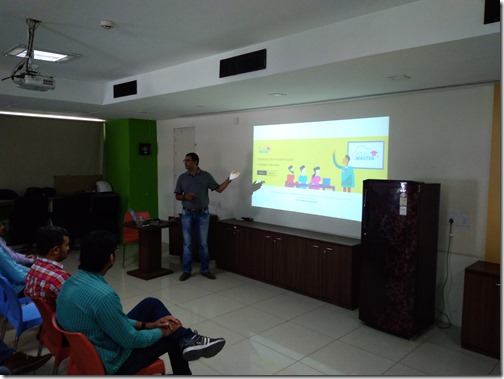
The Day was started by Keynote presentation from Mahesh Dhola by introducing what is Global Azure Bootcamp and how any developer can get benefited from this. He explained how great azure is and what is Agenda for this event.

IMG_20170422_102745

Then It’s my time to be on stage. I have taken session about Introduction to BOT Framework. It is the latest offering from Microsoft. I have explained all the bits of BOTS evolution and How easily we can create a great BOT in minutes. Even I have shown How we can make our BOT intelligent via adding LUIS which is a language understanding service from Microsoft.


IMG-20170424-WA0001
IMG-20170424-WA0002

Following is my presentation about events.


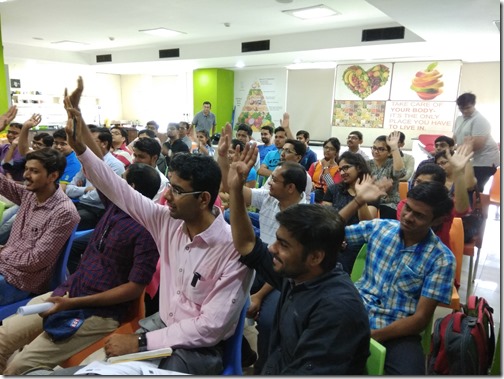
I had a great time presenting this topic and Audience was quite interested in this topic. We had some great question and answers.
IMG_20170422_105335
 IMG_20170422_105329

You can find source code that particular session at https://github.com/dotnetjalps/GAB2017
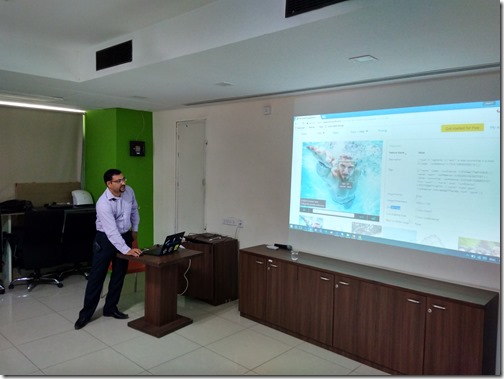
After that, There was a Session from Nirav Madariya. He has taken a session about Logic Apps and Azure Functions. Here he has explained how we can easily create logic apps. Then he has explained Azure functions. He explained how we can create a server-less architecture with Azure Functions.

IMG_20170422_120011_HDR
IMG_20170422_114220_HDR

After that, there was a session from Kalpesh Satasiya. He has taken session about Microsoft Cognitive Services. Where he explained various services provided by Microsoft Cognitive services i.e. Vision, Language, Knowledge, Speech, and Search.

IMG_20170422_123938_HDR
IMG_20170422_123957_HDR

And here you can find his presentation


After that there was a time for Lunch and we had great opportunity to have networked with each other.

IMG-20170424-WA0005
IMG-20170424-WA0008
IMG-20170424-WA0003
IMG_20170422_131614

We had great fun doing networking with each other. Also enjoyed lunch. Thank you, Microsoft for sponsoring it.

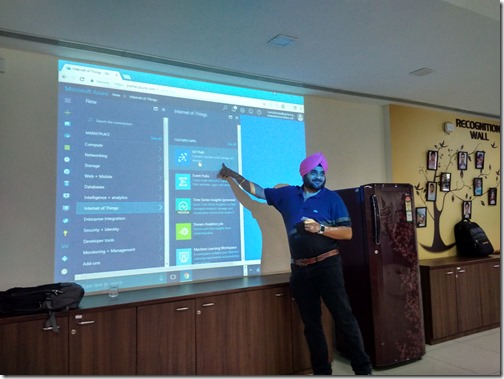
After that, there was a session from well known Microsoft Regional Director and MVP Prabjhot Baxi. He explained about Azure IOT suite. How we can add devices into Azure IOT hub. He also explained Azure IOT hub and stream analytics and how to store data in Azure Document DB.

IMG_20170422_133720_HDR

Then we had a great session from Kaushal Bhavsar about Log Analytics. It is not a popular feature of Azure But after attending his session I found it is quite useful. He explained about how we can enable various kind of logs with Logs analytics. Even he showcased a demo with adding agent in Linux server and seeing what logs are there.

IMG_20170422_143433
IMG_20170422_143430

After that Ahmedabad User Group president Mahesh Dhola. He had taken session about Open Source Technology at Microsoft, Azure Virtual Machines. He also showed a demo how we can host elastic search on Azure Linux Virtual machine.

IMG_20170422_153021
IMG_20170422_153030

Overall, It was a great event and Audience was also good.

IMG_20170422_114202
IMG_20170422_120021_HDR

It was one of the successful events we have. Thank your all the sponsors and Audience.
If you want to be part of such event or want to be a speaker at the event please contact me or AhemdabadUserGroup twitter handle.

https://twitter.com/AhmedabadUsrGrp

We are soon going to organize the Visual Studio community launch stay tuned for the same. #GlobalAzure
Share:

Support this blog-Buy me a coffee

Buy me a coffeeBuy me a coffee
Search This Blog
Subscribe to my blog


My Mvp Profile
Follow us on facebook
Blog Archive
Total Pageviews