Before sometime I have blogged about -
Why It's the right time to learn Typescript and It does get lot of buzz. Typescript getting every day more popular due to reason I have mentioned in above blog post. So now in this blog we are going to learn how we can use TypeScript with new Visual Studio Code editor.
TypeScript support in Visual Studio Code:
As you know Visual Studio Code is in beta now and provide great support for typescript. Here you can operate TypeScript in two modes.
1) File Scope:
In this mode Visual Studio Code will treat each typescript file as separate unit. So if you don't reference the typescript files manually with reference or external modules it will not provide intellisense as well as there will not common project context for this.
2) Explicit Scope:
In this scope we are going to create a tsconfig.json which will indicate that folder in which this file exist is a root of TypeScript project. Now you will get full intellisense as well as other common configurations on tsconfig.json file.
You can create a new file via File->New file from Visual Studio Code and add following code about TypeScript configuration under compiler operations.
{
    "compilerOptions": {
        "target": "ES5",
        "module": "amd",
        "sourceMap": true
    }
}
Converting TypeScript into JavaScript files automatically(Transpiling ):
Now as we all know that TypeScript is a super set of JavaScript and this files we can not directly put into html page. As browser will not understand the typescript itself. So we have to convert it into JavaScript. So to convert TypeScript file into JavaScript file we need to configure a in built task runner which will automatically convert all the TypeScript files into JavaScript.
To configure Task Runner you can either press F1 or Ctrl+Shift+P and type task runner. Configure Task runner will popup.
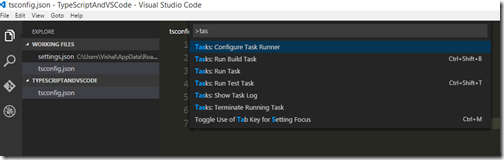
Once you press enter it will create a .vscode folder and create file called task.json which will have following code.
{
    "version": "0.1.0",

    // The command is tsc. Assumes that tsc has been installed using npm install -g typescript
    "command": "tsc",

    // The command is a shell script
    "isShellCommand": true,

    // Show the output window only if unrecognized errors occur.
    "showOutput": "silent",

    // args is the HelloWorld program to compile.
    "args": ["HelloWorld.ts"],

    // use the standard tsc problem matcher to find compile problems
    // in the output.
    "problemMatcher": "$tsc"
}
Now when you build your project it will create a JavaScript file automatically. Now Let's create a TypeScript file like following.
class HelloWorld{
     PrintMessage(name:string){
        console.log("Hello world:" + name);
    }
}
Here you can right now there is only one file there in explore section.
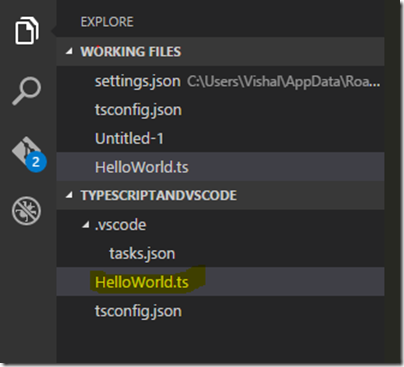
Now when you build the project with Ctrl+Shift+B. It will create a JavaScript file.
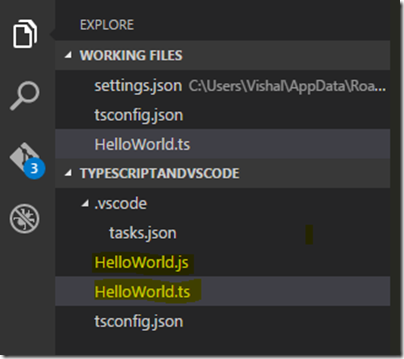
and Following is a code for the same.
var HelloWorld = (function () {
    function HelloWorld() {
    }
    HelloWorld.prototype.PrintMessage = function (name) {
        console.log("Hello world:" + name);
    };
    return HelloWorld;
})();
Hiding JavaScript File from explore area in Visual Studio Code:
I don't like my JavaScript file to show in explore area as we already have TypeScript file. So we don't have to worry about JavaScript file. There is a way to hide JavaScript file and I have to add following code in my user settings file. Which you can get it via File->Preferences->UserSetting
"files.exclude": {
"**/.git": true,
"**/.DS_Store": true,
"**/*.js":{
    "when": "$(basename).ts"
}
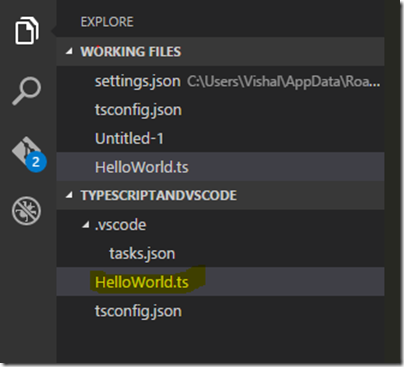
Here in above I have written custom filter for excluding JavaScript file when TypeScript file is present. Now it will not JavaScript file even if they exists on disk.
That's it. Hope you like it. Stay tuned for more!!. In forthcoming post we are going learn a lot of TypeScript.