Saturday, December 14, 2013

Creating DJango application with Python in Visual Studio

In previous post I have written about creating a basic python application with visual studio. In this post we are going to learn how we can create a DJango application with Python in Visual Studio with the help of python tools for Visual Studio.

What is DJango?


As per wikipedia, DJango is a free open source web application framework written in python which follow ups model view controller architectural pattern.It is maintained by  DJango Software Foundation an independent non profit organization. Django’s primary goal is to ease the creation of complex, database driven websites. DJango emphasizes reusability and plugability   of component and principle of Don’t repeat your self.

Creating DJango application with Visual Studio :


Let’s create first DJango application with Visual Studio and Python tools for Visual Studio. So to create DJango application with we have to create a new project via File->New Project –> DJango project just like following.
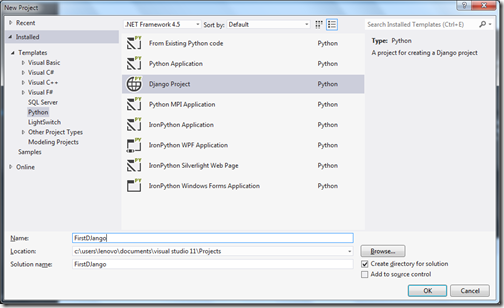
first-django-application-with-python-visual-studio

Once you click ok it will create a DJango project like following.
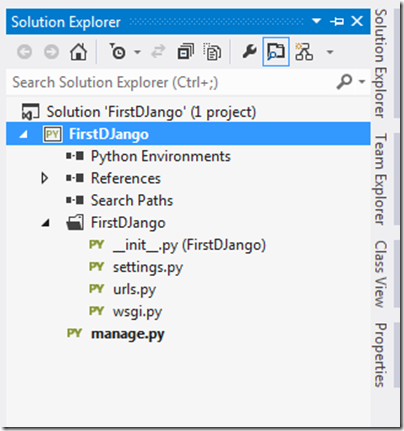
First-Django-application-solution-exploer-visual-studio

Now it’s time to create our first application. So right click FirstDjango folder and add new DJango App.
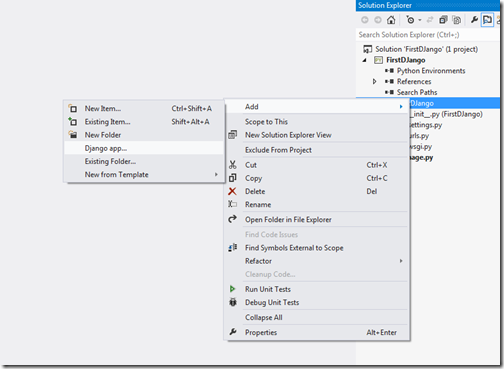
First-Django-app-solution-explorer-visual-studio

Now once you click on DJango app it will open a box like below.
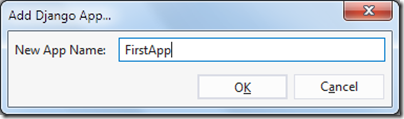
Add-DJango-app-web-python-visual-studio

Now its time to install Python Environment to application via right click on python environment in solution explorer and select environment.
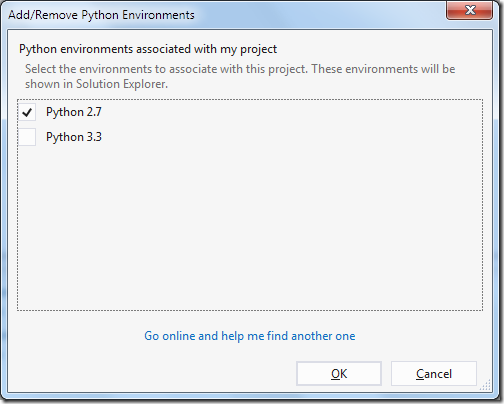
Select-Python-DJango-Environment-Visual-Studio

Now once you click OK it will add python environment to application.
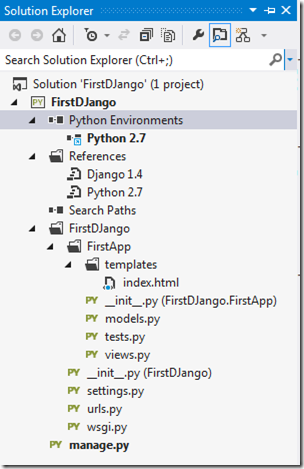
python-environment-visual-studio

Now right click python 2.7 and right click it will open up a popup like below.
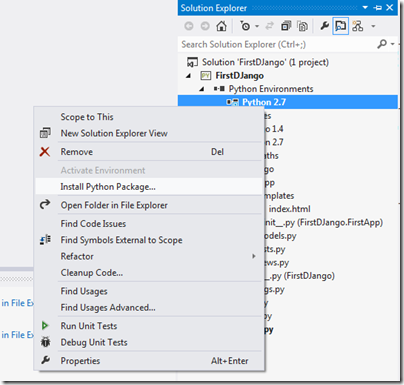
Install-Python-Package-Visual-Studio

Once you click on Install Python Package it will open up a dialog like following.
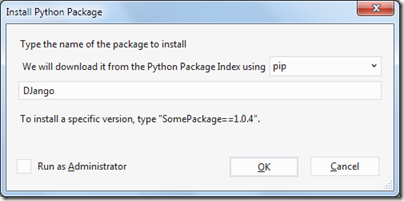
Install-DJango-VisualStudio
Once you click OK It will install DJango package in Visual Studio after installing lot of files it may take 5 to 10 minutes.
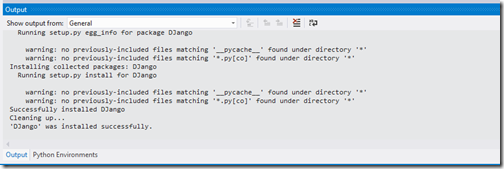
Installing-Django-Visual-Studio-Sucessfully

It’s done!! run your first application with DJango with f5 and following you see in browser.
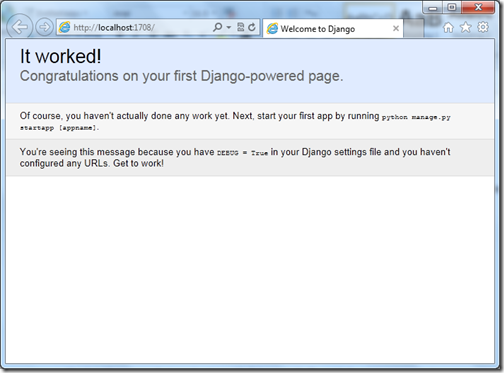
Running-DJango-Application-Python-Visual-Studio

Woohoo!! your first python web application ready. Hope you like it. Stay tuned for more..
Share:

ASP.NET Web API vs WCF

With Microsoft.NET Stack there are lots of way to create service like ASP.NET Web Service, WCF(Windows Communication Foundation) service and now ASP.NET Web API. The developer often get confused mainly between WCF Service and Web API. So I thought it is a good idea to write a blog post to about differences between ASP.NET Web API and WCF Service.

Difference between ASP.NET Web API  and WCF Service:


  1. WCF services support multiple transport support like HTTP,TCP,UDP,MSMQ and allow switching between them while ASP.NET Web API is used only http based services best suited for http service and mobile based application back end service. It is an quick and easy way to create http service.
  2. WCF support multiple encodings like Text,MTOM while ASP.NET Web API support wide range of media types like XML,JSON etc.
  3. WCF Service support Request-Reply, One way and duplex exchange patterns while HTTP service only support Request/Return pattern.

When to choose? What? WCF or Web API


  • Choose WCF if you want to support any other transport protocol then HTTP.
  • Choose Web API when you want to create resource oriented services very quickly.
  • Choose Web API when you want to serve wide variety of clients like browsers, mobile etc.
  • Choose WCF when you want to support message queuing, one way messaging and duplicate message communication.
Share:
Wednesday, December 11, 2013

Creating first python application in Visual Studio

Before some time I have blogged about Python tools in Visual Studio and explained how we install python tools with visual studio and start developing python application with the one of greatest editor in class Visual Studio. In this post we are going to learn how we can create a python application in Visual Studio.

First check whether Python Interpreters are install on your machine or not?


First step for creating python application with Visual Studio is to check whether Python interpreters are installed or not not. To Check this after installing Python tools for Visual Studio go to Tools menu –> Python Environments and it will show a list of python environments available.

Python Enviroments for Visual Studio

If it is not installed, you need to download from http://www.python.org/. I have already installed Python 3.3 so its showing there.

Creating first python application:


Once you install Python tools for visual studio it will also have options to create python application in visual studio. So go to file menu –> new project options->templates-> Select python it will show all the python options available for visual studio just like below.

Visual Studio Python Project Templates

There you have few options like below.
  • From Existing Python Code
  • Python Application
  • Django Project
  • Python MPI Application
  • IronPython Application
  • IronPython WPF application
  • IronPython Silverlight Web page
  • IronPython Windows application
As we need to create a simple application for python we are going to our first application with Python application.Once create project it will create application like following.

Python application in visual studio solution explorer

Now open that PythonApplication1.Py and write following code.

Python Hello World application with Visual Studio

And now run application via pressing f5.

PythonApplicationfromvisualStudioOutput

That’s it we are able to run our first application in Visual Studio. Woohoo!! Hope you like it. Stay tuned for more..
Share:
Sunday, December 8, 2013

Python tools for Visual Studio

Lots of people complaining that Microsoft does not support open source that is a myth about Microsoft it does support there are lots of open source initiative done by Microsoft and Python tools for Visual Studio is one of them.

With the help of this plugin you are able to do work on python on Visual Studio one of best editor in class.

Here is the link from you can download the Python tools for Visual Studio. Python tools are available for Visual Studio 2010,2012 and 2013. You can download the tools according your version.

PythonToolsForVisualStudioCodePlex

Go to download and here you can download Python as per your visual studio version 2010,2012 or 2013.

Pythontoolsfordiffrentvisualstudioversion

Installing Python Tools for Visual Studio :


Installation of Python tools is quite easy. Download the setup files and run exe of for that setup. You will get following screen.

PythonForVisualStudioInstallation1

Accept terms in License Agreement and click on install. There is also advance mode available where you can select different options.

PythonForVisualStudioInstallation2

Once you click install it will start installing python tools.

PythonForVisualStudioInstallation3

Once installation complete it will notify like below.

PythonForVisualStudioInstallation4

Click on finish and Yep you are ready to write code in python for Visual Studio.

Python and Visual Studio :


Now once you open Visual Studio and create a new project it will also Python as new language options.

VisualStudioPythonProject

Here you have various like From Existing Application, Python Application, DJango Project, Python MPI application. You can also see there is IronPython support is also there.

That’s it. You can see its very easy. Hope you like it. Stay tuned for more..
Share:

ASP.NET and Web Tools 2013.1 Tools for Visual Studio 2012

Recently Microsoft has released ASP.NET and Web Tools 2013.1 for visual studio 2012. There are tons of new feature and improvements are there. So Now it’s possible to have all the latest feature on ASP.NET stack on Visual Studio 2012 like ASP.NET MVC 5, ASP.NET Web API 2, Entity Framework 6.0 etc.
You can download this update from the following link.

http://www.asp.net/visual-studio/overview/2012/aspnet-and-web-tools-20131-for-visual-studio-2012

ASP.NET MVC 5:


Once you install this tools, ASP.NET MVC 5 templates are also installed.

ASPNETMVC5VisualStudio2012ProjectTemplate

So now you can use all the ASP.NET MVC 5 feature like One ASP.NET, ASP.NET Identity,Bootstrap MVC template, Authentication Filters,Filter overrides etc.

ASP.NET Web API 2:


ASP.NET Web API2 is also available here.

ASPNETWebAPI2VisualStudio2012ProjectTemplate 

So all ASP.NET Web API2 features like attribute routing, Cross Origin Resource Sharing, OWIN (Open Web Interface for .NET), IHttpActionResult, Web API Odata all are available Visual Studio 2012.

Twitter BootStrap Template:


Now ASP.NET MVC 5 application comes with Twitter Bootstrap, So all goodies of Twitter Bootstrap will be there with your ASP.NET MVC application.

Entity Framework 6.0:


It’s also comes with Entity framework 6.0. Where you have some new great features like Async Query and Save,Connection Resiliency, Code-Based Configuration, Dependency Resolution, Interception/SQL Logging, Improved transaction support etc will be available in Visual Studio 2012 itself.

Also there is a new version of Nuget is also available with this release. So now if one developer has Visual Studio 2012 and another one is having Visual Studio 2013 then also they can work on same project.

This post is a just an overview of all the new features that are available with this release. I will write in detail about all this new features. Stay tuned for more..
Share:
Saturday, December 7, 2013

New Milestone achieved–600,000 visits for my blog

Today, I got a good news from www.sitemeter.com that My blog has completed 600,000 visits for my blog. It’s a great achievement. I have never thought I will go so far.  It’s because of readers of my blog so thank you very much for your support and love without you guys this was not possible. On this occasion I would also like to thank my family for always being there and supporting me whatever I do and believing in me that I could do that. Thanks you very family!!.

Here are few statistics of my blog.

Statistics for my blog - A blog about asp.net mvc and other microsoft technologies

So till now 600,505 visits and 763,338 page views I got about 253 unique visits everyday.

Again thank you very much all readers of this blog without you it was not possible. I will keep writing blog whenever I get time from my professional commitments. I am loving all the communities are there and always been part of that.

Please also suggest me topics for writing blog post. Stay tuned for more..
Share:
Saturday, November 30, 2013

Getting started with ELMAH and ASP.NET MVC

We all need a framework to log exceptions in our web application. Today, We are going to learn about same. ELMAH(Error Logging Modules and Handlers) is an application wide error logging framework. How we can install it in ASP.NET MVC.

What is ELMAH:


ELMAH(Error logging Modules and Handlers) is an application wide error logging facility that is an pluggable framework. It can dynamically added to running an ASP.NET application. You also have Nuget package for the same.
You can find more information about on following link.

https://code.google.com/p/elmah/

Once you install ELMAH, You can have following advantages
  1. You can log almost all unhandled exceptions in the system.
  2. An RSS feed of last 15 errors from the log
  3. An email notification of each error occurs.
  4. A remote web page to log all the exceptions.
  5. You can insert log a various locations like files text file, SQL Server, Oracle etc.

ELMAH NuGet Package:


There is a nuget package also available for ELMAH. You can find at following link.

http://www.nuget.org/packages/elmah/

and Following Command you have to run for installing NuGet Pacakge.

ELMAHNuGetPackageASP.NETMVC

Getting Started with ASP.NET MVC and ELMAH:


So Let’s first create a new project with ASP.NET MVC  from Visual Studio via File->New Project –>ASP.NET MVC 4 Application.

ELMAHNewProjectMVC

Once you click OK it will ask you for type of application like following. We are going to select internet application here.

TypeofApplicationELMAHMVC

Once you click on OK it will create new ASP.NET MVC 4 Application. Once our ASP.NET MVC 4 application is ready. It’s time to add ELMAH to ASP.NET MVC4 Application. The best way to add ELMAH is nuget package so we don’t have to worry about the configuration settings in web.config. So Let’s go to Tools-> Library Package Manager-> Package Manger Console and run the NuGet Command like following.

PackageManagerConsoleNuGetPacakgeELMAH

So now if you see in web.config all configuration is added.
Web.ConfigErrorHandlingSection
Now let’s run our asp.net application via pressing f5.

ElMAHASP.NETMVCSite

Now let’s create some unhandled errors for example test Action Result does not exist in our ASP.NET MVC application. So Let’s write that in URL and it will give error like following.

ErrorElMAHASPNETMVC

Now let’s see whether this error is logged by ELMAH or not. Here you go

ErrorLogELMAH

Once you click on details. It will show details error like following.

DetailErroLogELMAH

That’s it. You can see now it’s very easy to log errors and unhandled exceptions in ELMAH. There are various options to log errors in ELMAH we will see that in future posts.

Hope you like it. Stay tuned for more..
Share:

How to find days in year except Saturday and Sunday in C#

Before 2 years I have written a blog post to find Saturday and Sunday in given date range.  It has gain a lot of popularity and on that blog post one user ask about how we can find days in year except Saturday and Sunday in C#. This post is a in reply for that. Following is a code for that.
using System;

namespace DatimeApplication
{
    class Program
    {
        static void Main(string[] args)
        {
            DateTime startDate = new DateTime(2013, 1, 1);
            DateTime endDate = new DateTime(2013, 12, 31);

            TimeSpan diff = endDate - startDate;
            int days = diff.Days;
            int j=0;
            for (var i = 0; i <= days; i++)
            {
                var testDate = startDate.AddDays(i);
                if (testDate.DayOfWeek != DayOfWeek.Saturday && testDate.DayOfWeek != DayOfWeek.Sunday)
                {
                    j = j + 1;
                    Console.WriteLine(testDate.ToShortDateString());
                }
            }
            Console.WriteLine(string.Format("Total Days:{0}",j));
            Console.ReadLine();
        }
    }
}

If you see above code,  Its very easy to find all days except Saturday and Sunday in a year. I have created two dates with Start date and end date and then I found a difference between those two days. And then in for loop I have checked whether they are weekdays then I have printed a date for that. I have calculated all days except Saturday and Sunday for year 2013. At the end I have printed total days also.

Once you run the code following is a output as expected.

FindDaysExceptSatudaySundayInCsharp

That’s it. Hope you like it. Stay tuned for more…
Share:
Thursday, November 14, 2013

My visual studio settings

Lots of people send me email about what kind of visual studio settings I am using and I am replying them again and again so I thought it will be good idea to write a blog post about it.

Yes, Since last 2 months I have been using dark theme of Visual Studio 2012 but I am not using default dark theme color settings of visual studio. I’m using dark theme color settings created by Keith Elder. You can find more information about color settings of this theme from following link.

http://keithelder.net/2010/03/05/my-visual-studio-color-settings-again/

I simply love this one and its works on all flavours of Visual Studio starting from Visual Studio 2008 to 2012. Below are few screenshots from that.

VisualStudioDarkTheme

Here is another screenshot.

ClearDarkTheme

It’s been great for eyes and I can work with very easily and as you may notice my default font for visual studio is Consolas and size is 11.

Now lots of people ask me whether its working fine with resharper or not and Its works like a charm. See following screenshot.

ResharperBlackTheme

And this is how intellisense look with Visual studio 2012 dark theme.

VisualStudioIntellisenseDark

And this how HTML part of ASP.NET MVC looks in the dark theme.

DarkHtmlVisualStudioTheme

If you still never try of any dark theme for visual studio then try it and it is great for your eyes. I would like to say big thanks to  Keith Elder for creating a great black theme. If you want to try same theme then you can download that from above link I have mentioned.
Hope you like it. Stay tuned for more..Happy Programming Smile
Share:
Friday, November 8, 2013

How to find space used by table in SQL Server

Recently there was requirement for a client where we need to find space occupied/used  by particular table in SQL Server. I did some research a found a very cool way to get space used information from SQL Server.

With SQL server 2005 and higher version you can use ‘sp_spaceused’ to find space used by table in SQL Server.

Following is a syntax for that.
sp_spaceused N'YourTableName'

You can find more information about it from the following link.
http://msdn.microsoft.com/en-us/library/ms188776.aspx

When you run this in SQL Server, Its displays Number of Rows, disk space served and disk space used by a table or indexed view and also displays disk space reserved and used by database.

SpaceUsedByTableSQLServer

Here in the above example, You have seen that I have used to find space for employee table in my blog sample database and its providing information about rows, reserved space, data size, index_size space and unused space.

That’s it. Hope you like it. Stay tuned for more.
Share:
Thursday, November 7, 2013

How to find path of database data files and log files in SQL Server

In this post, We will learn about different technique to find path of data files and log files on SQL Server. Let’s go through one by one of them.

The first technique, We are going to use is very simple way to finding file path for database. But with this you can find path for one database only. It’s very simple, Select database on object explorer and right click and select properties.


HowToSelectDatabaseFilePathSQLServer1

Now once you click on properties a dialog box appear like following. Select files and go to path column it will show path of database data files and log files.

HowToSelectDatabaseFilePathSQLServer2
Now we will learn another technique where we can find database data file and log file path from query. Below is query for that.

SELECT name, physical_name FROM sys.master_files where database_id= db_id('blog')

Now once you run this query it will load result like following.

HowToSelectDatabaseFilePathSQLServer3


That’s it you can find you database file path very easily. You can use above query to find files path for multiple databases also without using where clause. Hope you like it. Stay tuned for more.
Share:
Sunday, October 27, 2013

All about Virtual,Override and New in C#


I have seen that lots of people get confused with Virtual, Override and new keyword in C#. So I thought it will be a good idea to write a blog post about it. In this blog post we will learn what is virtual, override and new keyword in C# and what’s difference between override and new in C#.

Virtual and Override in C#:


Virtual keyword allows class member to override in derived class. Let’s take simple example. I have class A which contains Print Method method as virtual method and I have another class B which is derived from class A which overrides Print method. Following is a code for that.

public class A
{
    public virtual void Print()
    {
        System.Console.WriteLine("Virtual Print method from a");
    }
}

public class B:A
{
    public override void Print()
    {
        System.Console.WriteLine("Override Print method from b");
    }
}
Now If I create a object of class A like following and run the code Print method run as normal method. Following is code for for that.
class Program
   {
       static void Main(string[] args)
       {
          A a=new A();
          a.Print();
       }
   }

Once you run this it will have following output.

VirutalAsNormalMethodinCsharp

But when you create a object of class B like following it will completely override the functionality of class A. That is called method Method Overriding. Following is a code for that.

class Program
{
    static void Main(string[] args)
    {
       B b=new B();
       b.Print();
    }
}

Now, if you run this code it will completely override the code and following will be output as expected.

OverrideMethodinCsharp

How to call base class method with override:


In some scenario, we need base class functionality also while overriding the method of that class. C# provides that functionality with ‘base’ keyword. For that I have changed code of class B like following.
public class B:A
{
public override void Print()
{
    System.Console.WriteLine("Override Print method from b");
    base.Print();
}
}

class Program
{
    static void Main(string[] args)
    {
       B b=new B();
       b.Print();
    }
}

Now if you run the code you will see output of both method as expected.

BaseKeywordwithoverridecsharp

What is difference between new and override in C#:


After looking into above example some people will argue that this functionality will be achieved by new keyword also. This is call Method Hiding where with new keyword you can hide functionality of base class.  But wait there is a difference. Both are slightly different let’s take some simple example to show difference following is a code for that.
namespace Oops
{
    class Program
    {
        static void Main(string[] args)
        {
           A a=new B();
           B b=new B();

           a.Print();
           b.Print();
        }
    }

    public class A
    {
        public virtual void Print()
        {
            System.Console.WriteLine("Virtual Print method from a");
        }
    }

    public class B:A
    {
        public override void Print()
        {
            System.Console.WriteLine("Override Print method from b");
        }
    }
}

In this code, same A class Print method is override by B class Print method and I have created two object of class B. One with reference to base class A and another B itself. Now let’s run this example and following is a output.

OverridewithInheritancedifferencebetweenoverideandnew

Here you see both time it will override class A’s Print Method. Now let’s change above code with new keyword like following.
namespace Oops
{
    class Program
    {
        static void Main(string[] args)
        {
           A a=new B();
           B b=new B();

           a.Print();
           b.Print();
        }
    }

    public class A
    {
        public virtual void Print()
        {
            System.Console.WriteLine("Virtual Print method from a");
        }
    }

    public class B:A
    {
        public new void Print()
        {
            System.Console.WriteLine("Override Print method from b");
        }
    }
}

Now you run this code. Following is output.

OverridewithInheritanceDifferenceBetweenoverrideandnew

If you see both output carefully then you will notice a difference. With override keyword it will override Print method in both scenarios. While with new keyword it will only hide print method and both method exist as separate method so if you create a class A object with B then it will class A’s Print method without hiding it and If you create class B object with B then it will hide the base class method and print from class B’s method. So that was the difference.

That’s it. Hope you like it. Stay tuned for more..
Share:
Tuesday, October 22, 2013

Linq- AddRange Method in C#

In this post I’m going to explain you about Linq AddRange method. This method is quite useful when you want to add multiple elements to a end of list. Following is a method signature for this.
public void AddRange(
    IEnumerable<T> collection
)
To Understand let’s take simple example like following.

using System.Collections.Generic;
using System;
namespace Linq
{
    class Program
    {
        static void Main(string[] args)
        {
            List<string> names=new List<string> {"Jalpesh"};
            string[] newnames=new string[]{"Vishal","Tushar","Vikas","Himanshu"};
            foreach (var newname in newnames)
            {
                names.Add(newname);
            }
            foreach (var n in names)
            {
                Console.WriteLine(n);
            }
        }
    }
}

Here in the above code I am adding content of array to a already created list via foreach loop. You can use AddRange method instead of for loop like following.It will same output as above.
using System;
using System.Collections.Generic;

namespace Linq
{
    class Program
    {
        static void Main(string[] args)
        {
            List<string> names=new List<string> {"Jalpesh"};
            string[] newnames=new string[]{"Vishal","Tushar","Vikas","Himanshu"};
            names.AddRange(newnames);
            foreach (var n in names)
            {
                Console.WriteLine(n);
            }
        }
    }
}

Now when you run that example output is like following.

AddRangeLinqCsharp

Add Range in more complex scenario:

You can also use add range to more complex scenarios also like following.You can use other operator with add range as following.
using System;
using System.Collections.Generic;
using System.Linq;

namespace Linq
{
    class Program
    {
        static void Main(string[] args)
        {
            List<string> names=new List<string> {"Jalpesh"};
            string[] newnames=new string[]{"Vishal","Tushar","Vikas","Himanshu"};
            names.AddRange(newnames.Where(nn=>nn.StartsWith("Vi")));
            foreach (var n in names)
            {
                Console.WriteLine(n);
            }
        }
    }
}

Here in the above code I have created array with string and filter it with where operator while adding it to an existing list. Following is output as expected.

AddRangeLinqCsharpAdvanceScneario

That’s it. Hope you like it. Stay tuned for more..
Share:
Monday, October 21, 2013

throw new exception- C#

This post will be in response to my older post about throw exception best practice. where one of user asked that I should include throw new exception.So I thought it will be good idea to write a whole blog post for it. This blog post explains what's wrong with throw new exception.

What’s wrong with throw new exception:


Throw new exception is even worse, It will create a new exception and will erase all the earlier exception data. So it will erase stack trace also.Please go through following code. It’s same earlier post the only difference is throw new exception.

using System;

namespace Oops
{
    class Program
    {
        static void Main(string[] args)
        {
            try
            {
                DevideByZero(10);
            }
            catch (Exception exception)
            {
                throw new Exception
                (string.Format(
                    "Brand new Exception-Old Message:{0}",
                     exception.Message));
            }
        }

        public  static void DevideByZero(int i)
        {
           int j = 0;
           int k = i/j;
           Console.WriteLine(k);
          
        }
    }
}

Now once you run this example. You will get following output as expected.

Throw new exception C#

Hope you like it. Stay tuned for more..
Share:
Friday, October 18, 2013

throw vs. throw(ex) best practice and difference- c#

Recently I was looking into someone’s code found that they are using the throw(ex) to log exception so I told that person that why you are not using only throw he said there is no difference.. Wait this is not true there is a difference. So, this post is all about throw Vs. throw(ex) best practice and what is difference.

We all know that C# provides facility to handle exception with try and catch block and some times we use throw statement in catch block to throw the exception to log the exception. Here there two options either you could use throw(ex) or simple throw just like following.

try
{

}
catch (Exception ex)
{
    throw;
}

And
try
{

}
catch (Exception ex)
{
    throw(ex);
}

So which one is good and best practice let’s study that.

Similarities:

Let’s first see what is similar in both.
  1. Both are used to throw exception in catch block to log message
  2. Both contains same message of exception

Difference:

Now let’s see what is difference.
  1. throw is used to throw current exception while throw(ex) mostly used to create a wrapper of exception.
  2. throw(ex) will reset your stack trace so error will appear from the line where throw(ex) written while throw does not reset stack trace and you will get information about original exception.
  3. In MSIL code when you use throw(ex) it will generate code as throw and if you use throw it will create rethrow.
Let’s understand by example. Following is example where you use throw.

using System;

namespace Oops
{
    class Program
    {
        static void Main(string[] args)
        {
            try
            {
                DevideByZero(10);
            }
            catch (Exception exception)
            {
                throw;
            }
        }

        public  static void DevideByZero(int i)
        {
           int j = 0;
           int k = i/j;
           Console.WriteLine(k);
          
        }
    }
}

Here in the above code I have created function DevideByZero where it will create a problem as it try to devide a integer by zero. and in try catch block I am use throw to again throw exception. Now let’s run this application.

throw vs throws(ex) diffrence

Now I have just replace throw with throw(exception) and see it will have following output.

throw vs throw(ex)

So you can see in first image we have got full stack trace information where the actual exception called at line 22 and again rethrow at line 15 While in the another screenshot you can see there is only information about line 15. It does not show full stack trace.So when you use throw(ex) it will reset stack trace.

So it’s always best practice to use throw instead of throw(ex). That’s it. Hope you like it..Stay tuned for more Smile
Share:

Support this blog-Buy me a coffee

Buy me a coffeeBuy me a coffee
Search This Blog
Subscribe to my blog


My Mvp Profile
Follow us on facebook
Blog Archive
Total Pageviews