Visual Studio code is a Great Editor and I like it very much. It support’s a lot of cool features our of box. Node.js Application debugging is one of them. It provides great debugging with node.js just like Visual Studio. I have created a small video demonstrating the same. Please have a look.
Sunday, July 9, 2017
Wednesday, June 21, 2017
Video: Visual Studio 2017 Features
Visual Studio 2017 got lots of new features and so that I’ve created a new video for demonstrating all the features of video. Please have a look at that video at below.
Let me know what kind of video you want to watch more!. Stay tuned for more!
Let me know what kind of video you want to watch more!. Stay tuned for more!
Saturday, June 17, 2017
Code Navigation features in Visual Studio Code
Visual Studio Code is an open source, free, Cross-platform editor and I have been using it now more than the year. I just simply loved this editor. It’s a got lot of feature and there are some cool navigation features there. In this blog post, we are going to explore those navigation features.
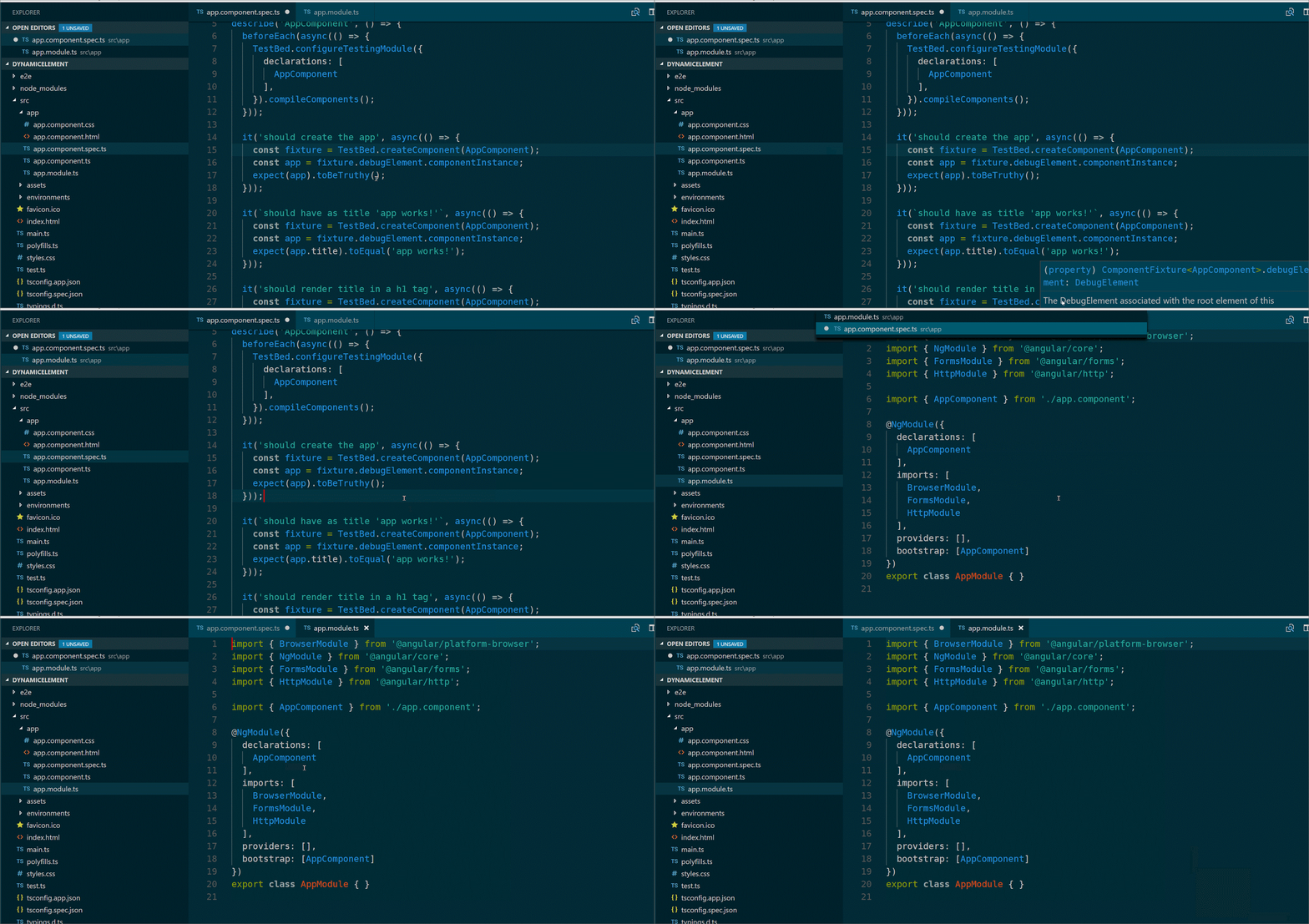
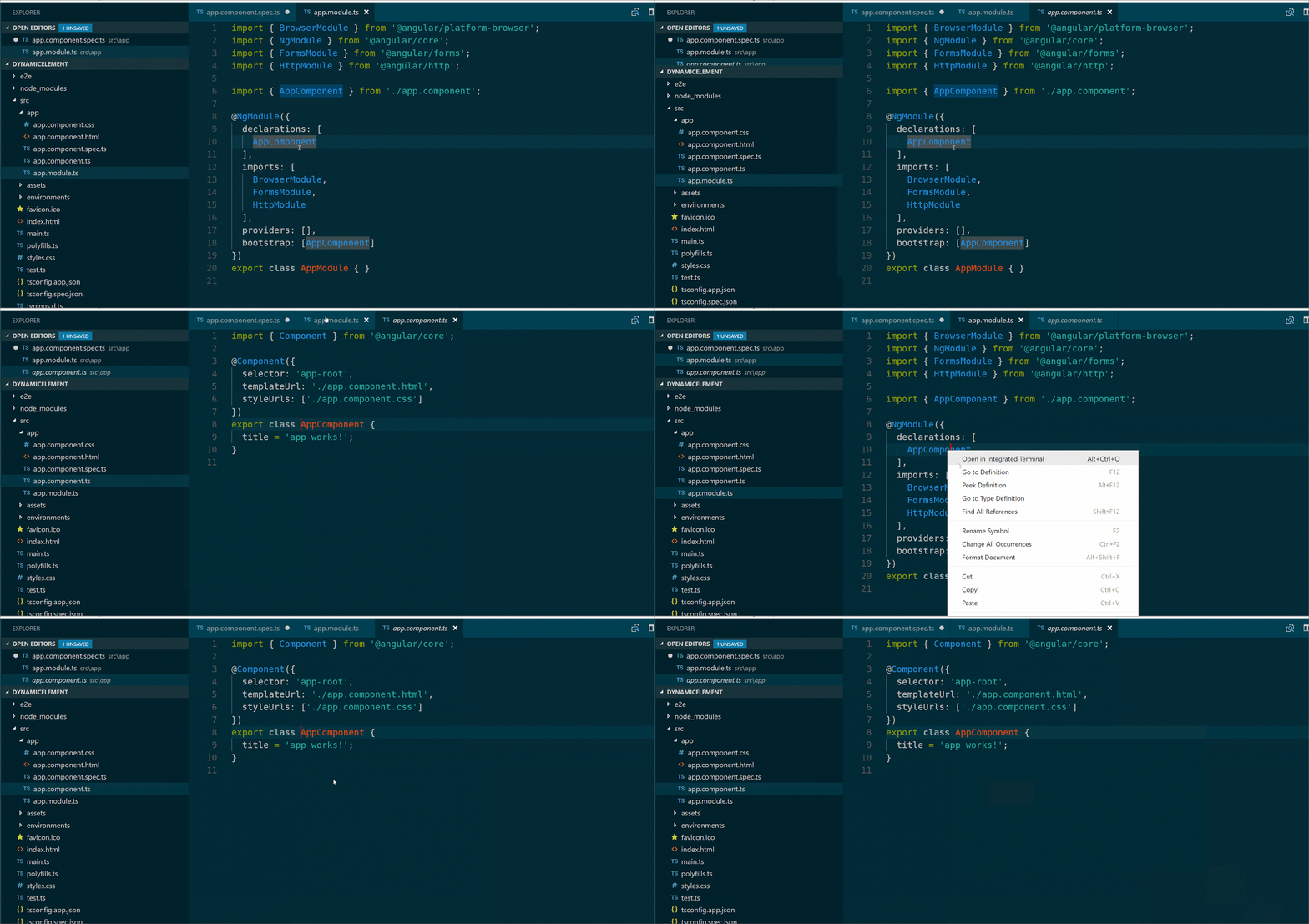
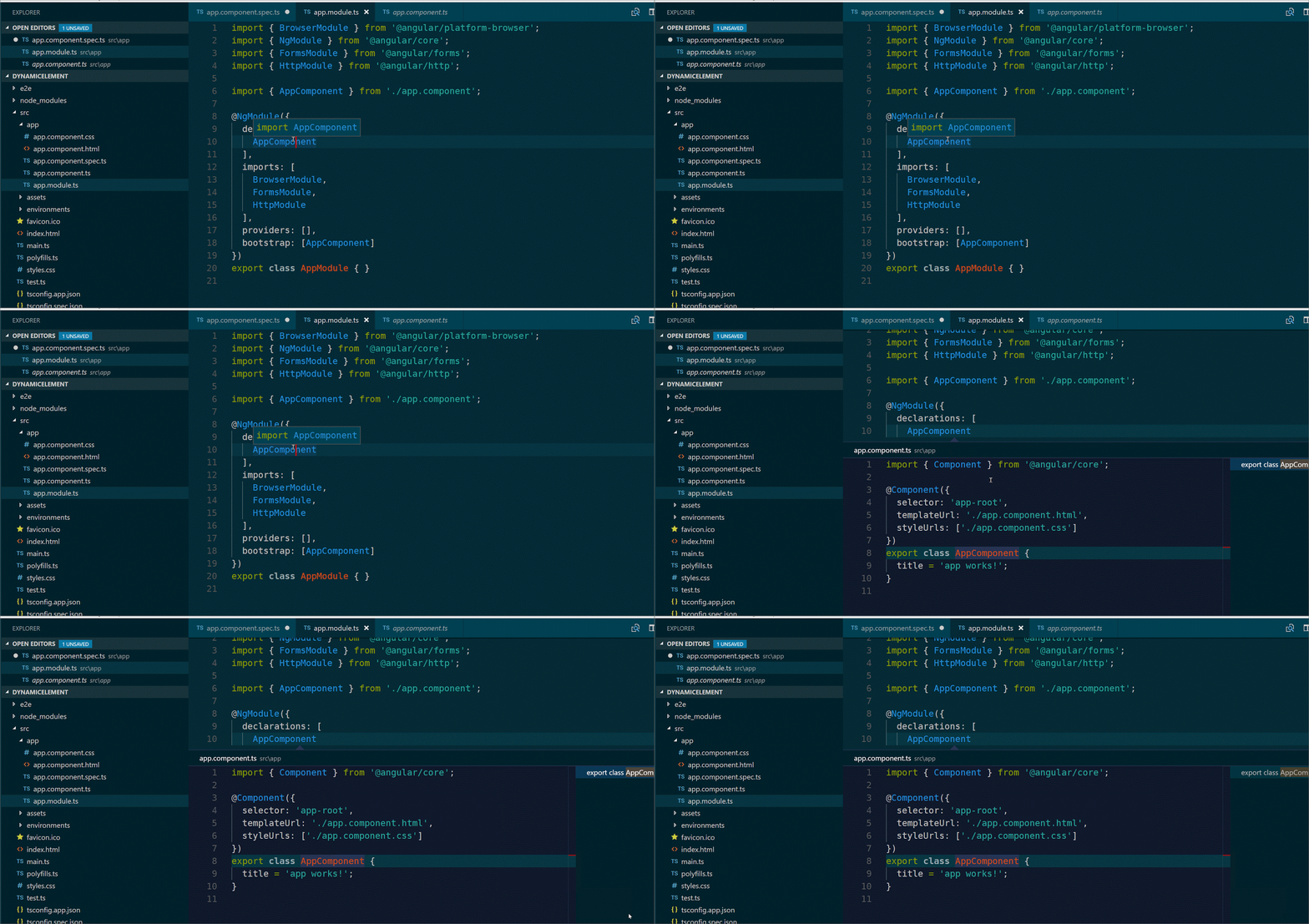
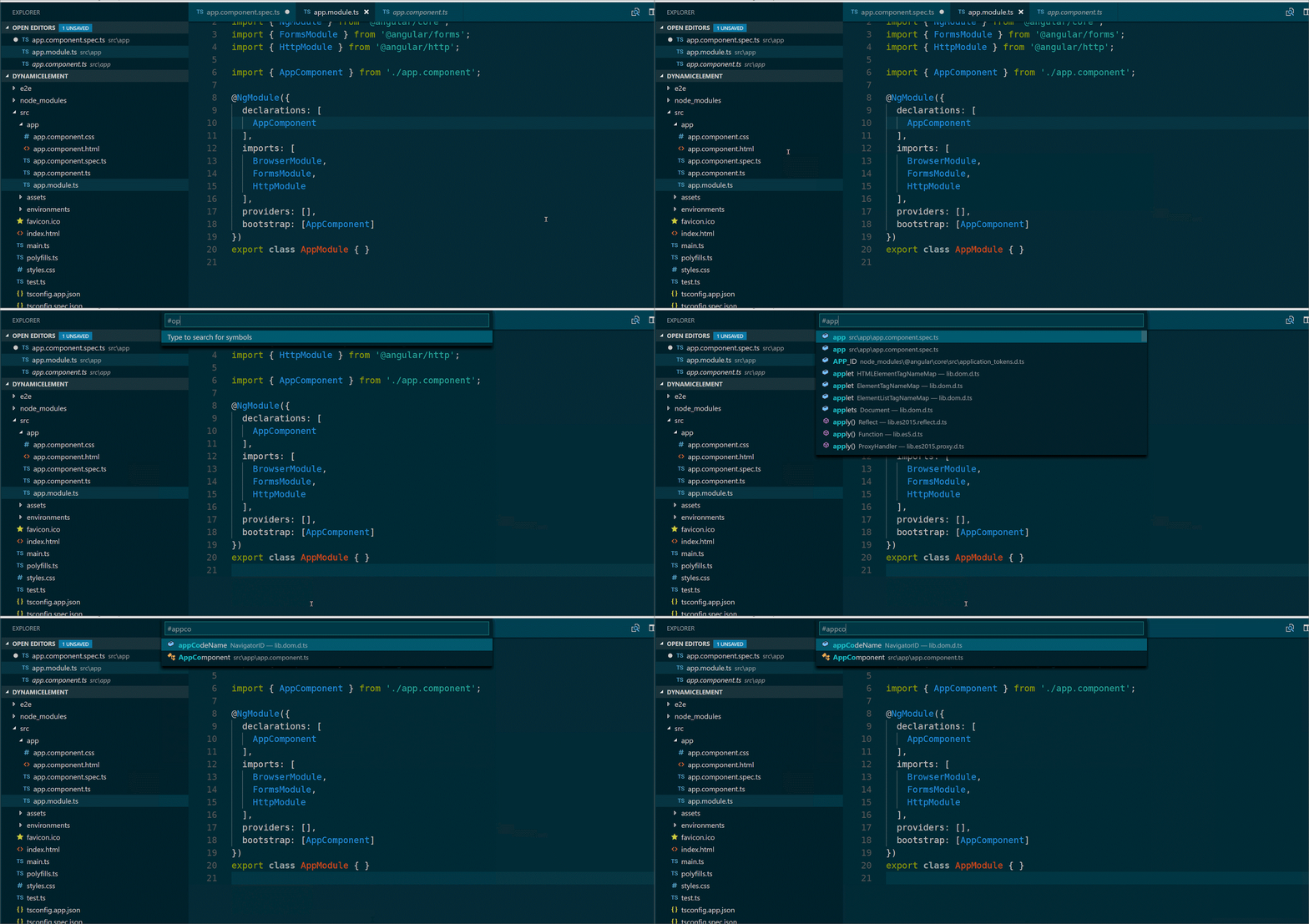
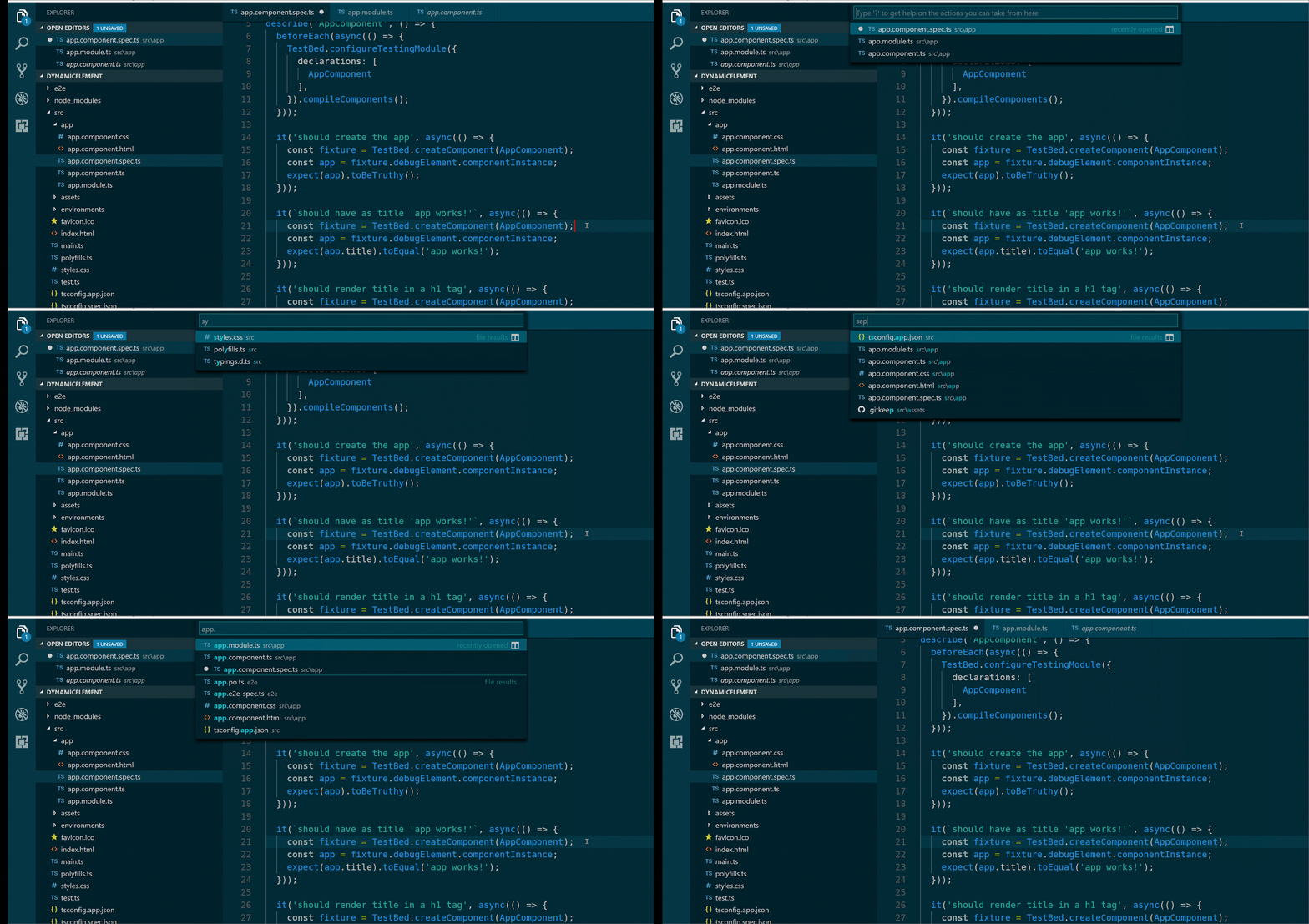
There tons of other features available with Visual Studio code. So if you have not tried this editor I would highly recommend to try it. I’m sure you fall love in it. You can download Visual Studio code from the following location.
https://code.visualstudio.com/
Stay tuned for more!.
Quick Open File Navigation Features(Ctrl+Tab):
If you press Ctrl + Tab then it will show all the open files in Visual Studio Code.Go To Definition(F12):
If Language is supported in Visual Studio Code then you have that feature available just like have it in full Visual Studio IDE. You can press F12 to go to definition and the same way you can also right click and select Go To Definition.Peek Definition(Alt + F12):
Peek Definition is working same as Go To Definition the only difference is it will load a windows inline and show. It is quite useful when you want to quickly see something. You can use this feature via pressing Alt+F12.Open Symbol(Ctrl+T):
It also contains some Resharper like features you can go to any symbol via pressing Ctrl + T. Just type the first letter of a type you want to navigate to, regardless of which file.Go To File(Ctrl + P):
You can also go to any file with Go To File feature of Visual Studio code via pressing Ctrl + P. This quite useful when you have large code base.There tons of other features available with Visual Studio code. So if you have not tried this editor I would highly recommend to try it. I’m sure you fall love in it. You can download Visual Studio code from the following location.
https://code.visualstudio.com/
Stay tuned for more!.