In previous post I have written about creating a basic python application with visual studio. In this post we are going to learn how we can create a DJango application with Python in Visual Studio with the help of python tools for Visual Studio.
As per wikipedia, DJango is a free open source web application framework written in python which follow ups model view controller architectural pattern.It is maintained by DJango Software Foundation an independent non profit organization. Django’s primary goal is to ease the creation of complex, database driven websites. DJango emphasizes reusability and plugability of component and principle of Don’t repeat your self.
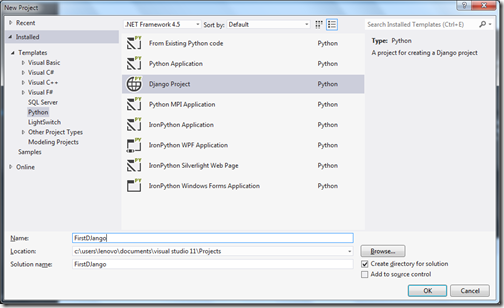
Let’s create first DJango application with Visual Studio and Python tools for Visual Studio. So to create DJango application with we have to create a new project via File->New Project –> DJango project just like following.
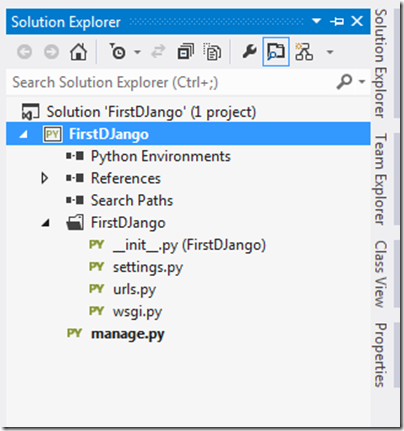
Once you click ok it will create a DJango project like following.
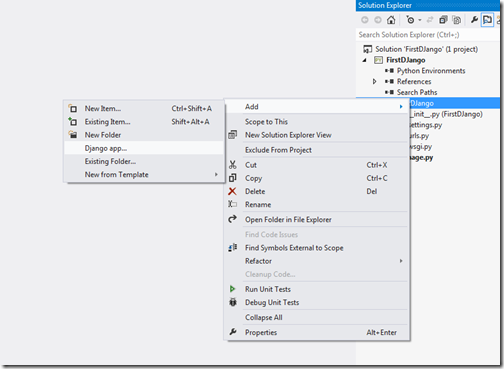
Now it’s time to create our first application. So right click FirstDjango folder and add new DJango App.
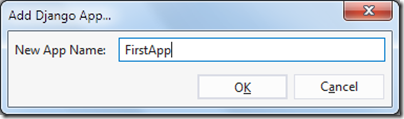
Now once you click on DJango app it will open a box like below.
Now its time to install Python Environment to application via right click on python environment in solution explorer and select environment.
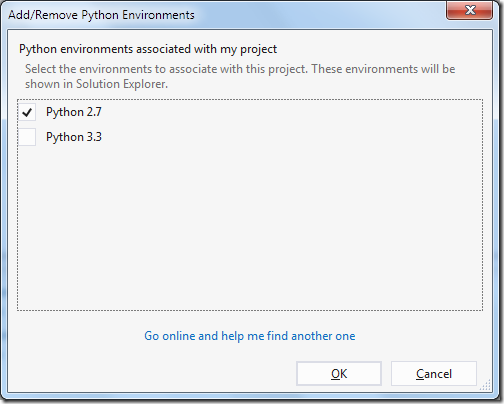
Now once you click OK it will add python environment to application.
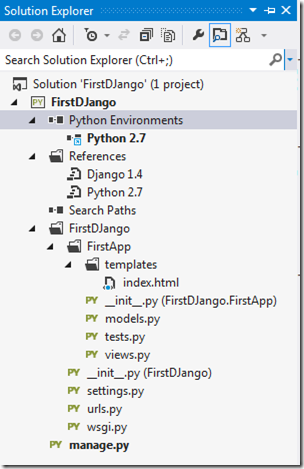
Now right click python 2.7 and right click it will open up a popup like below.
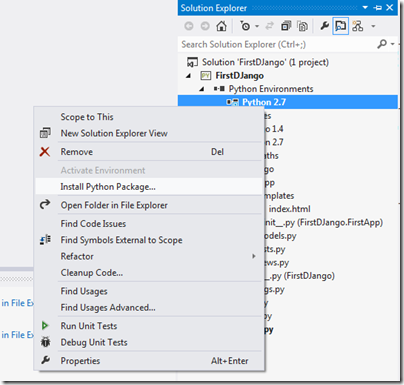
Once you click on Install Python Package it will open up a dialog like following.
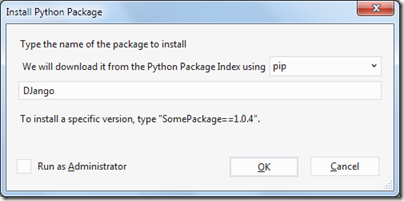
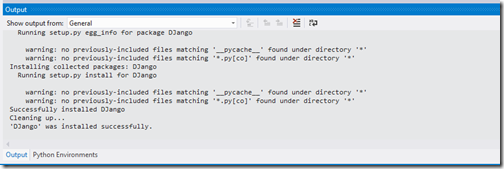
Once you click OK It will install DJango package in Visual Studio after installing lot of files it may take 5 to 10 minutes.
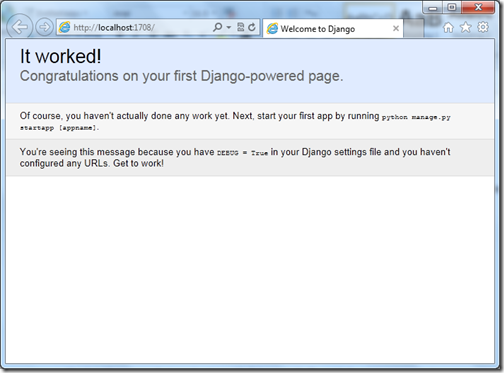
It’s done!! run your first application with DJango with f5 and following you see in browser.
Woohoo!! your first python web application ready. Hope you like it. Stay tuned for more..
What is DJango?
As per wikipedia, DJango is a free open source web application framework written in python which follow ups model view controller architectural pattern.It is maintained by DJango Software Foundation an independent non profit organization. Django’s primary goal is to ease the creation of complex, database driven websites. DJango emphasizes reusability and plugability of component and principle of Don’t repeat your self.
Creating DJango application with Visual Studio :
Let’s create first DJango application with Visual Studio and Python tools for Visual Studio. So to create DJango application with we have to create a new project via File->New Project –> DJango project just like following.

Once you click ok it will create a DJango project like following.

Now it’s time to create our first application. So right click FirstDjango folder and add new DJango App.

Now once you click on DJango app it will open a box like below.

Now its time to install Python Environment to application via right click on python environment in solution explorer and select environment.

Now once you click OK it will add python environment to application.

Now right click python 2.7 and right click it will open up a popup like below.

Once you click on Install Python Package it will open up a dialog like following.

Once you click OK It will install DJango package in Visual Studio after installing lot of files it may take 5 to 10 minutes.

It’s done!! run your first application with DJango with f5 and following you see in browser.

Woohoo!! your first python web application ready. Hope you like it. Stay tuned for more..