Hangfire is one of the easiest ways to perform background processing in.NET and.NET Core Applications. In this application we are going to learn how we are can integrate Hangfire with ASP.NET Core application.
You can find more information Hangfire on the following link.
http://hangfire.io/
Hangfire also contains one of very maintained documentation at the following link.
http://docs.hangfire.io/en/latest/
Once click on it will ask for the selection of Application task we are going to select Web Application like below.

As our application is not ready, We are going to install Hangfire nuget package in the application.

Now we are done with adding Hangfire to our asp.net core application. We need to create a SQL Server database for Hangfire application. Here I’m going to use SQL Server for Job storage but there are various Job Storage options available as mentioned above.
Now we need to have ConnectionString for the database. Let’s put it on appsetting.json like below.

Now you can easily add background task like below at any place.
About Hangfire:
Hangfire allows you to create background task in.NET applications. It’s extremely easy to integrate. It allows you to kick off method calls outside of the request processing pipeline in very easy but reliable way. You can store those jobs in on premise SQL Server, SQL Azure, Redis, MSMQ or Redis.You can find more information Hangfire on the following link.
http://hangfire.io/
Hangfire also contains one of very maintained documentation at the following link.
http://docs.hangfire.io/en/latest/
Integrating HangFire with ASP.NET Core 1.1:
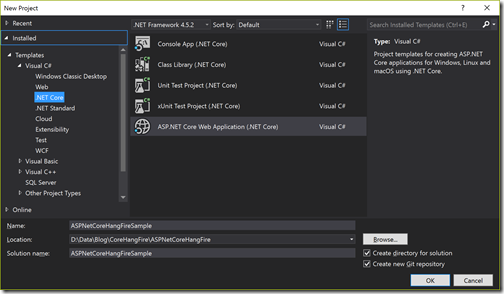
To demonstrate how we can integrate with ASP.NET core, I’m going to create a new ASP.NET Core application in Visual Studio 2017 like below.
Once click on it will ask for the selection of Application task we are going to select Web Application like below.

As our application is not ready, We are going to install Hangfire nuget package in the application.

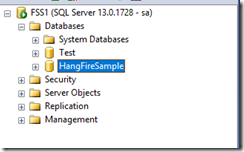
Now we are done with adding Hangfire to our asp.net core application. We need to create a SQL Server database for Hangfire application. Here I’m going to use SQL Server for Job storage but there are various Job Storage options available as mentioned above.

Now we need to have ConnectionString for the database. Let’s put it on appsetting.json like below.
{
  "ConnectionStrings": {
    "HangFireConnectionString": "Data Source=SQLServer;Initial Catalog=HangFireSample;User ID=YourUserName;Password=YourPassword;MultipleActiveResultSets=true"
  },
  "Logging": {
    "IncludeScopes": false,
    "LogLevel": {
      "Default": "Warning"
    }
  }
}
Now in Startup.cs file configure services method we need to integrate hangfire like below. Here I’ve added hangfire to our application and also indicated that we are going to use SQL Server for Job storage and provided connection string for the same.public void ConfigureServices(IServiceCollection services)
{
// Add framework services.
services.AddMvc();
services.AddHangfire(config=>config.UseSqlServerStorage(Configuration.GetConnectionString("HangFireConnectionString")));
}
Now Hangfire integration is easy to use. When you run it will automatically create tables related to Hangfire configuration and storage as below.
Now you can easily add background task like below at any place.
BackgroundJob.Enqueue(() => Console.WriteLine("BackGroundJob"));
Even you can add recurring job which will run at a specific time like below. RecurringJob.AddOrUpdate(() => Console.WriteLine("RecurringJob"), Cron.Daily);
That’s it. You can see it’s very easy to use and You can integrate Hangfire very easily. Hope you like it. Stay tuned for more!.You can find complete source code of this application at following on github.com : https://github.com/dotnetjalps/ASPNetCoreHangFire