We all need a framework to log exceptions in our web application. Today, We are going to learn about same. ELMAH(Error Logging Modules and Handlers) is an application wide error logging framework. How we can install it in ASP.NET MVC.
ELMAH(Error logging Modules and Handlers) is an application wide error logging facility that is an pluggable framework. It can dynamically added to running an ASP.NET application. You also have Nuget package for the same.
You can find more information about on following link.
https://code.google.com/p/elmah/
Once you install ELMAH, You can have following advantages
There is a nuget package also available for ELMAH. You can find at following link.
http://www.nuget.org/packages/elmah/
and Following Command you have to run for installing NuGet Pacakge.

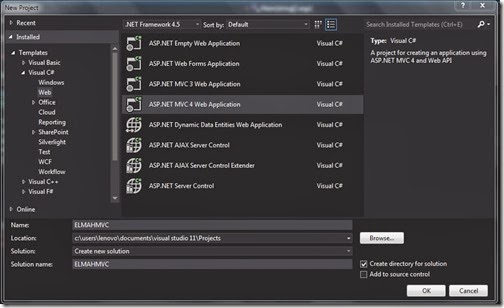
So Let’s first create a new project with ASP.NET MVC from Visual Studio via File->New Project –>ASP.NET MVC 4 Application.
Once you click OK it will ask you for type of application like following. We are going to select internet application here.

Once you click on OK it will create new ASP.NET MVC 4 Application. Once our ASP.NET MVC 4 application is ready. It’s time to add ELMAH to ASP.NET MVC4 Application. The best way to add ELMAH is nuget package so we don’t have to worry about the configuration settings in web.config. So Let’s go to Tools-> Library Package Manager-> Package Manger Console and run the NuGet Command like following.

So now if you see in web.config all configuration is added.

Now let’s run our asp.net application via pressing f5.

Now let’s create some unhandled errors for example test Action Result does not exist in our ASP.NET MVC application. So Let’s write that in URL and it will give error like following.

Now let’s see whether this error is logged by ELMAH or not. Here you go

Once you click on details. It will show details error like following.

That’s it. You can see now it’s very easy to log errors and unhandled exceptions in ELMAH. There are various options to log errors in ELMAH we will see that in future posts.
Hope you like it. Stay tuned for more..
What is ELMAH:
You can find more information about on following link.
https://code.google.com/p/elmah/
Once you install ELMAH, You can have following advantages
- You can log almost all unhandled exceptions in the system.
- An RSS feed of last 15 errors from the log
- An email notification of each error occurs.
- A remote web page to log all the exceptions.
- You can insert log a various locations like files text file, SQL Server, Oracle etc.
ELMAH NuGet Package:
http://www.nuget.org/packages/elmah/
and Following Command you have to run for installing NuGet Pacakge.

Getting Started with ASP.NET MVC and ELMAH:

Once you click OK it will ask you for type of application like following. We are going to select internet application here.

Once you click on OK it will create new ASP.NET MVC 4 Application. Once our ASP.NET MVC 4 application is ready. It’s time to add ELMAH to ASP.NET MVC4 Application. The best way to add ELMAH is nuget package so we don’t have to worry about the configuration settings in web.config. So Let’s go to Tools-> Library Package Manager-> Package Manger Console and run the NuGet Command like following.

So now if you see in web.config all configuration is added.

Now let’s run our asp.net application via pressing f5.

Now let’s create some unhandled errors for example test Action Result does not exist in our ASP.NET MVC application. So Let’s write that in URL and it will give error like following.

Now let’s see whether this error is logged by ELMAH or not. Here you go

Once you click on details. It will show details error like following.

That’s it. You can see now it’s very easy to log errors and unhandled exceptions in ELMAH. There are various options to log errors in ELMAH we will see that in future posts.
Hope you like it. Stay tuned for more..